General Settings
These settings control the foundational aspects of the plugin, such as task identification, file storage, and click behavior.
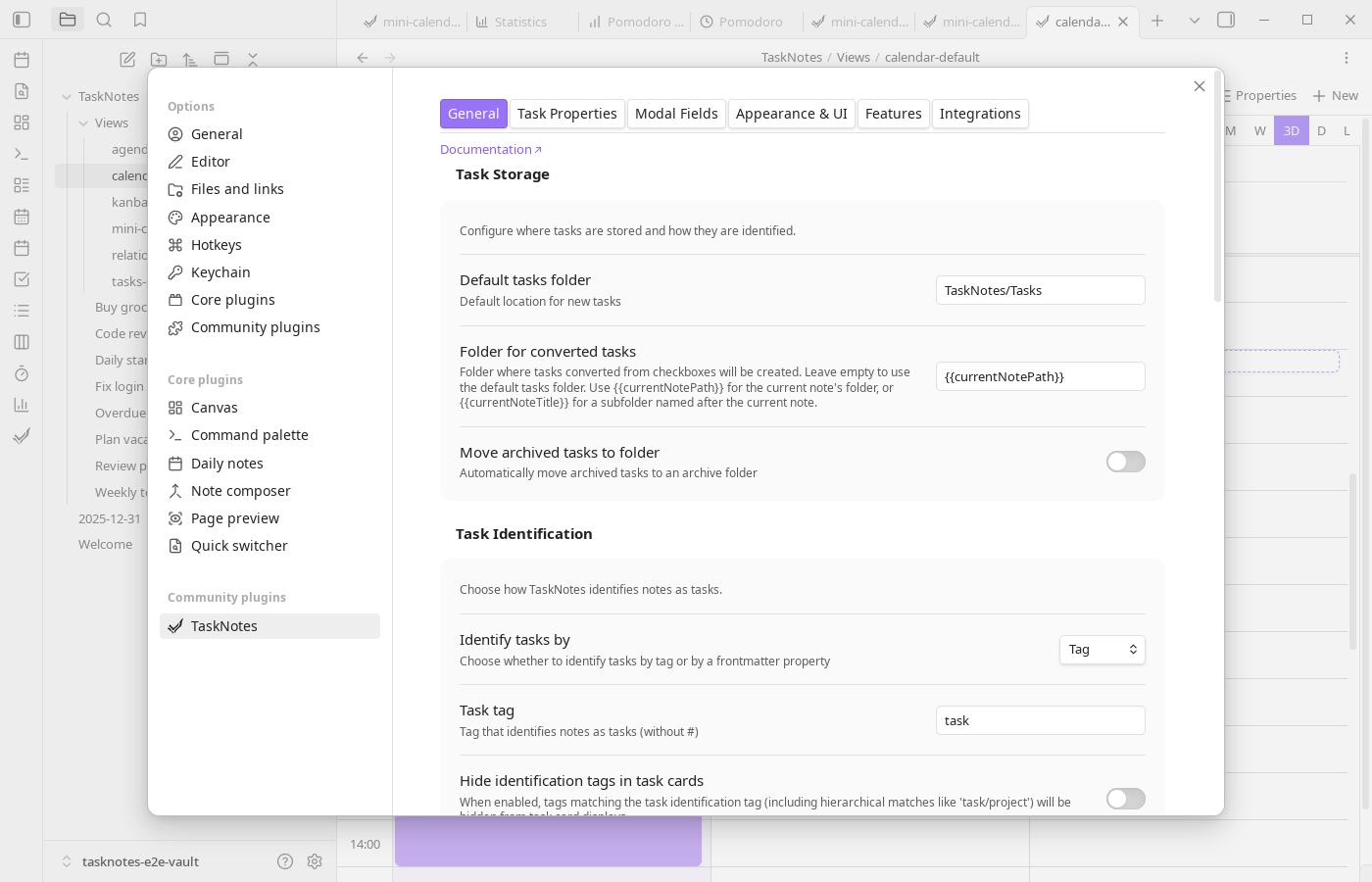
Task Storage
Task storage settings define where new and converted task files are created and how archived tasks are relocated. Default tasks folder sets the base location. Folder for converted tasks appears when instant conversion is enabled and supports {{currentNotePath}} and {{currentNoteTitle}} placeholders for contextual routing. If archive moves are enabled, completed archived tasks are moved automatically to your configured archive folder.
Task Identification
TaskNotes can identify task notes using either a tag or a frontmatter property.
Use Identify tasks by to select a strategy.
- Tag mode uses a configured task tag (for example
task) and can optionally hide that identifying tag in card displays. - Property mode matches a property/value pair (for example
isTask: trueorcategory: task) and is useful when you avoid tag-based identification.
Hide Identification Tags
When using tag-based identification, you may want to keep your task identification tags in the frontmatter for organizational purposes, but hide them from the visual display in task cards to reduce clutter.
The Hide identification tags in task cards setting allows you to do this. When enabled:
- Tags that exactly match your task identification tag (e.g.,
#task) will be hidden - Hierarchical child tags (e.g.,
#task/project,#task/work/urgent) will also be hidden - Other tags that don't match the identification pattern will still be displayed
- The setting only affects the visual display—tags remain in the frontmatter
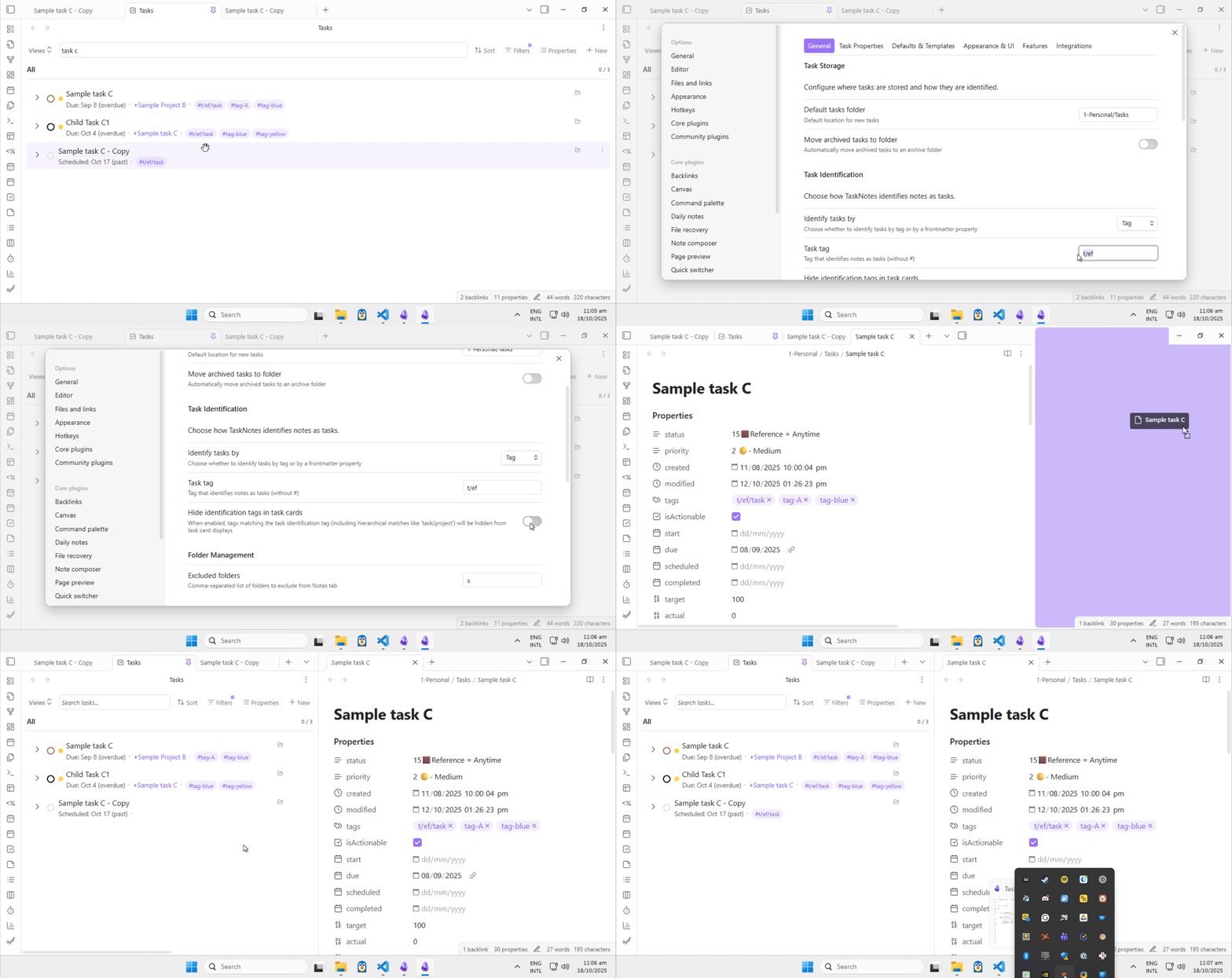
Example:
If your task identification tag is task and a task has the tags #task, #task/project, #important, and #review:
- With the setting disabled (default): All tags are shown:
#task,#task/project,#important,#review - With the setting enabled: Only non-identifying tags are shown:
#important,#review
Folder Management
Use Excluded folders to omit paths from Notes tab indexing and keep large archive areas out of regular task browsing.
Frontmatter
This section only appears when you have markdown links enabled globally in Obsidian settings.
Use markdown links in frontmatter switches project/dependency serialization from wikilinks ([[path]]) to markdown links ([text](path)). This requires the obsidian-frontmatter-markdown-links plugin.
Task Interaction
Task interaction settings define default click behavior on task cards. You can independently choose single-click and double-click actions (edit task, open note, or no action for double click).
Release Notes
View release notes opens the release notes view for the current version. Notes also open automatically after updates and remain available from the command palette.