Modal Fields Settings
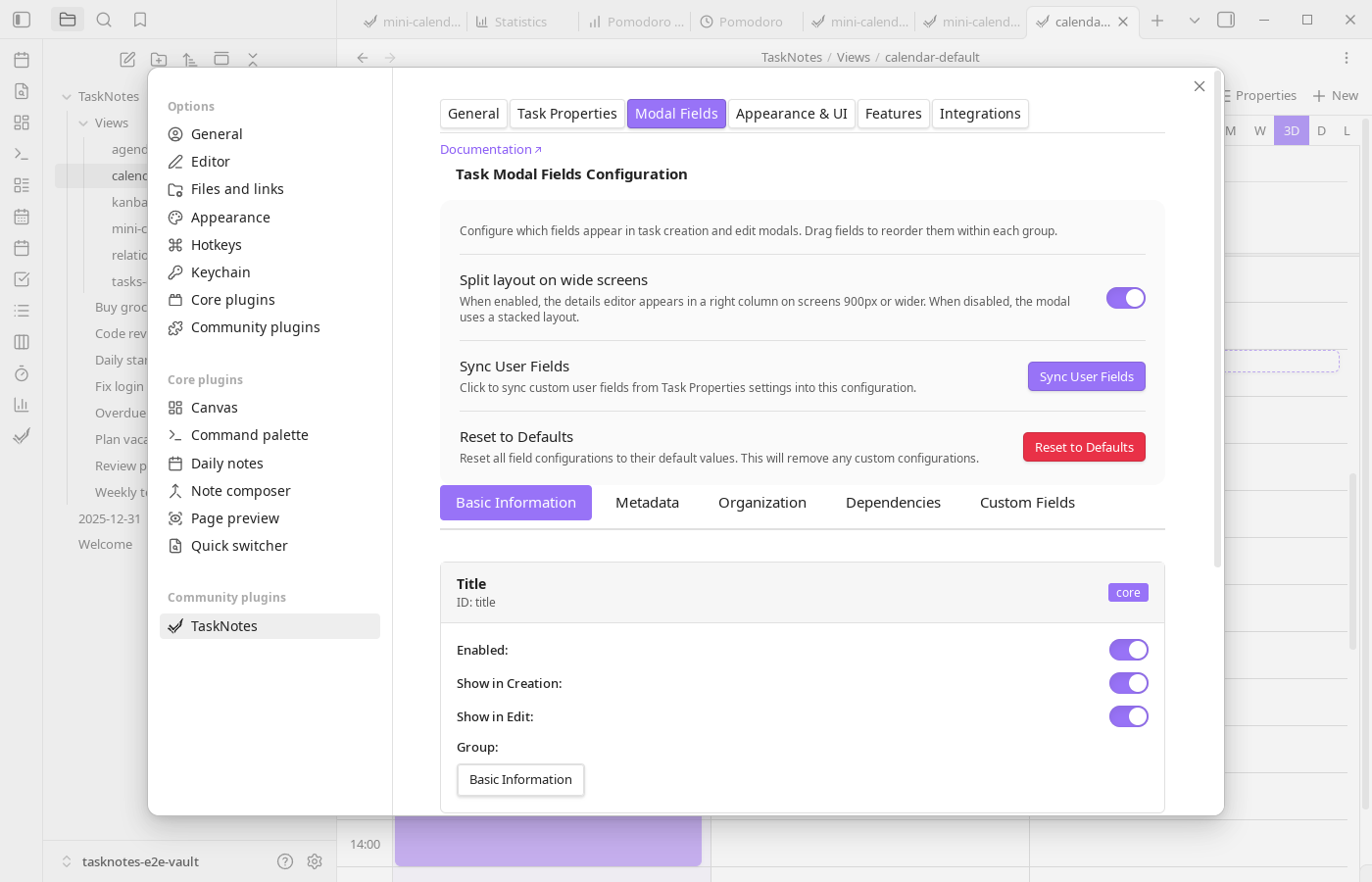
The Modal Fields tab lets you decide exactly which fields appear in the task creation and edit modals. Open Settings → TaskNotes → Modal Fields to manage the configuration.
Field Groups
Fields are organized into draggable groups:
- Basic Information – Title and Details
- Metadata – Contexts, Tags, Time Estimate
- Organization – Projects and Subtasks
- Dependencies – Blocked By and Blocking
- Custom Fields – Any user-defined fields that you add through Task Properties
Each group can be collapsed, and their order in the manager matches the order shown in the modal.
Managing Fields
Every field entry includes:
- Visibility toggles for creation and edit modals
- Enable/disable checkbox
- Drag handle for ordering within its group
- Required toggle (where applicable, e.g., Title)
Changes are saved automatically. Use this to hide fields you never touch, ensure required metadata appears up front, or reorder fields to match your workflow.
Syncing User Fields
The Sync User Fields button pulls the latest user-defined fields from the Task Properties tab into the Custom Fields group. New user fields are appended, renamed fields update in place, and removed fields drop out of the configuration. Re-run the sync whenever you add or rename custom fields.
Resetting to Defaults
Select Reset to Defaults to restore the stock configuration (all built-in fields enabled plus empty custom slots). The reset keeps your existing user field definitions; it only reverts modal layout and visibility.