Task Properties Settings
This tab configures all task properties. Each property is displayed as a card containing its configuration options.
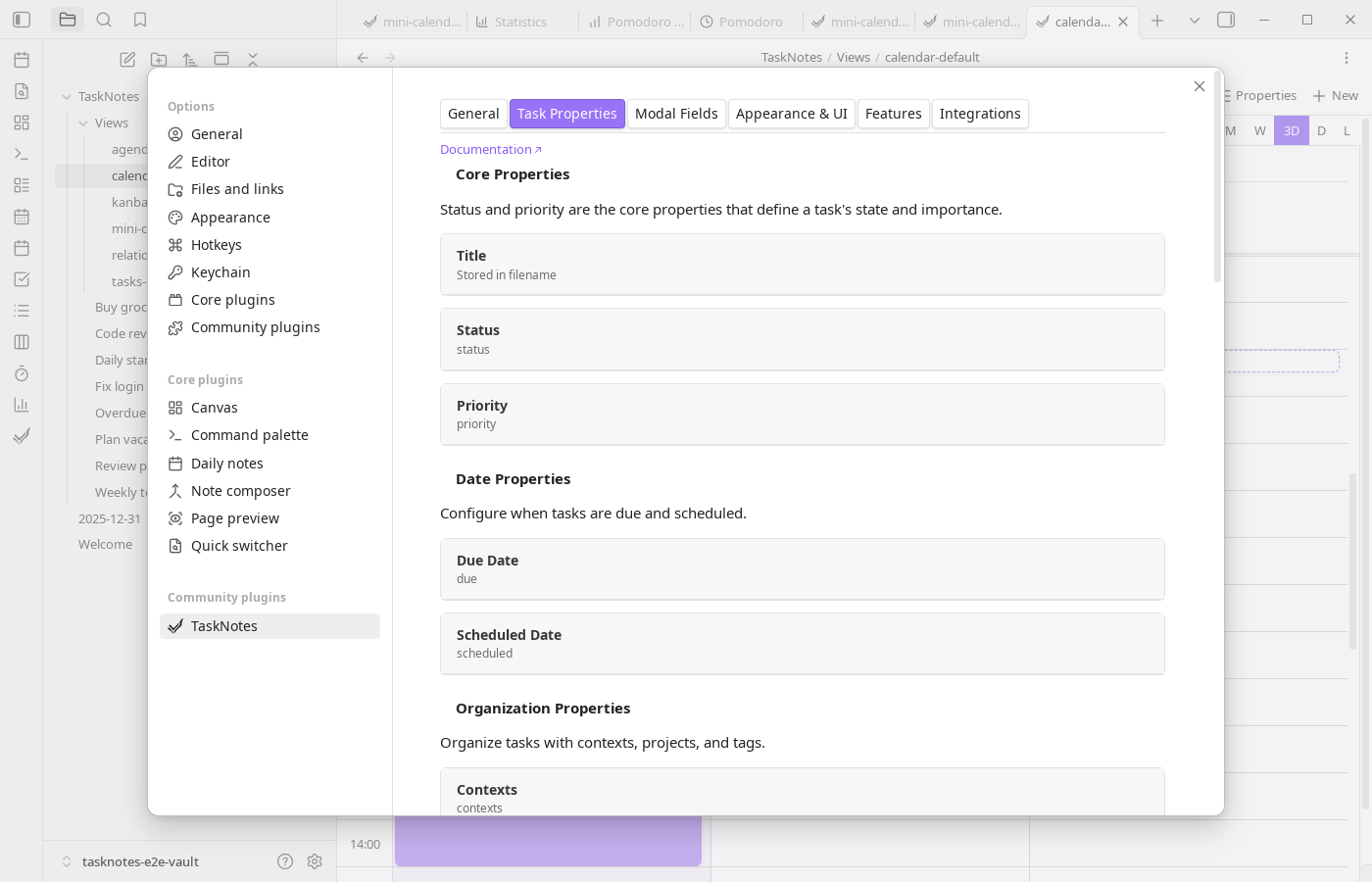
!!! tip "Looking for property type documentation?" See the Property Types Reference for detailed documentation on the expected data types (text, list, date, etc.) for each frontmatter property.
Property Card Structure
Each property card contains:
- Property key: The frontmatter field name used to store this property
- Default: The default value applied to new tasks (where applicable)
- NLP trigger: Toggle and character configuration for natural language parsing (where applicable)
- Property-specific settings: Additional configuration options specific to that property This tab defines the task schema used by creation flows, NLP parsing, views, and API payloads.
Core Properties
Title
The task title property. Configuration options:
- Property key: Frontmatter field name (default:
title) - Store title in filename: When enabled, the task title is stored in the filename instead of frontmatter. The filename updates when the title changes.
- Filename format: When "Store title in filename" is disabled, choose how filenames are generated:
- Title-based
- Zettelkasten-style
- Timestamp-based
- Custom template
- Custom template: Define a custom filename pattern using variables (shown when "custom" format is selected)
Status
Task completion state. Configuration options:
- Property key: Frontmatter field name (default:
status) - Default: Default status for new tasks
- NLP trigger: Character that triggers status parsing (default:
*) - Status Values: Expandable section containing individual status cards
Each status value has:
- Value: Internal identifier stored in frontmatter (e.g., "in-progress")
- Label: Display name shown in the interface (e.g., "In Progress")
- Color: Visual indicator color
- Icon: Optional icon identifier
- Completed: Whether this status represents a finished task
- Auto-archive: Automatically archive tasks after a delay (1-1440 minutes)
Status cards support drag-and-drop reordering.
Boolean Status Values
TaskNotes supports using boolean values (true and false) as status values, which integrates with Obsidian's native checkbox property format:
- When you set a task's status to
"true"or"false"(case-insensitive), TaskNotes automatically converts it to a boolean in frontmatter - When reading tasks with boolean status values from frontmatter, they are converted back to the strings
"true"or"false" - This allows you to use Obsidian's native checkbox property toggles in the Properties panel while maintaining compatibility with TaskNotes
Example:
---
status: true    # Boolean checkbox in Obsidian
---
Priority
Task priority level. Configuration options:
- Property key: Frontmatter field name (default:
priority) - Default: Default priority for new tasks (can be set to "No default")
- NLP trigger: Character that triggers priority parsing (default:
!, disabled by default) - Priority Values: Expandable section containing individual priority cards
Each priority value has:
- Value: Internal identifier stored in frontmatter (e.g., "high")
- Label: Display name shown in the interface (e.g., "High Priority")
- Color: Visual indicator color
Priority cards support drag-and-drop reordering. Status and priority values are stored in frontmatter; renaming them later may require migration of existing task files.
Note for Bases plugin users: Obsidian's Bases plugin sorts priorities alphabetically by their Value. To control sort order, name values to sort alphabetically in the desired order:
- Example:
1-urgent,2-high,3-medium,4-normal,5-low- Or:
a-urgent,b-high,c-medium,d-normal,e-low
Date Properties
Due Date
When the task must be completed. Configuration options:
- Property key: Frontmatter field name (default:
due) - Default: Default due date for new tasks (None, Today, Tomorrow, Next Week)
Scheduled Date
When to work on the task. Configuration options:
- Property key: Frontmatter field name (default:
scheduled) - Default: Default scheduled date for new tasks (None, Today, Tomorrow, Next Week)
duetracks commitment deadlines, whilescheduledtracks intended execution time.
Organization Properties
Contexts
Where or how the task can be done. Configuration options:
- Property key: Frontmatter field name (default:
contexts) - Default: Comma-separated list of default contexts (e.g., @home, @work)
- NLP trigger: Character that triggers context parsing (default:
@)
Projects
Projects the task belongs to. Configuration options:
- Property key: Frontmatter field name (default:
projects) - Default projects: Select project notes to automatically link to new tasks
- Use parent note as project: Automatically link the parent note as a project during instant task conversion
- NLP trigger: Character that triggers project parsing (default:
+) - Autosuggest Filters: Expandable section to filter which notes appear in project suggestions
- Customize Display: Expandable section to configure how project suggestions appear
Autosuggest Filters
Control which notes appear when selecting projects:
- Required tags: Comma-separated list of tags (shows notes with ANY of these tags)
- Include folders: Comma-separated list of folder paths (shows notes in ANY of these folders)
- Required property key: Frontmatter property that must exist
- Required property value: Expected value for the property (optional) These filters reduce suggestion noise in large vaults.
A "Filters On" badge appears when any filters are configured.
Customize Display
Configure project suggestion appearance:
- Enable fuzzy matching: Allow typos and partial matches in project search
- Row 1, 2, 3: Configure up to 3 lines of information for each project suggestion
Tags
Obsidian tags for categorization. Configuration options:
- Default: Comma-separated list of default tags (without #)
- NLP trigger: Character that triggers tag parsing (default:
#)
Note: Tags use native Obsidian tags and do not have a separate property key setting.
Task Details
Time Estimate
Estimated time to complete the task. Configuration options:
- Property key: Frontmatter field name (default:
timeEstimate) - Default: Default time estimate in minutes (0 = no default)
Recurrence
Pattern for repeating tasks. Configuration options:
- Property key: Frontmatter field name (default:
recurrence) - Default: Default recurrence pattern (None, Daily, Weekly, Monthly, Yearly)
Reminders
Notifications before task deadlines. Configuration options:
- Property key: Frontmatter field name (default:
reminders) - Default Reminders: Expandable section containing default reminder cards
Each default reminder can be:
Relative reminders (triggered relative to due or scheduled date):
- Anchor date (due date or scheduled date)
- Offset amount and unit (minutes, hours, days)
- Direction (before or after)
- Description
Absolute reminders (triggered at specific times):
- Date
- Time
- Description
Metadata Properties
These properties are system-managed and typically only require property key configuration:
- Date Created: When the task was created
- Date Modified: When the task was last modified
- Completed Date: When the task was completed
- Archive Tag: Tag used to mark archived tasks
- Time Entries: Time tracking entries for the task
- Complete Instances: Completion history for recurring tasks
- Blocked By: Tasks that must be completed first
Feature Properties
These properties are used by specific TaskNotes features and are not stored in task frontmatter:
- Pomodoros: Property key for Pomodoro session counts. When Pomodoro data storage is set to "Daily notes", this property is written to daily notes rather than task files.
- ICS Event ID: Property key for calendar event identifiers. Added to notes created from ICS calendar events to link them back to the source event.
- ICS Event Tag: Property key for calendar event tags. Added to notes created from ICS calendar events for identification.
Custom User Fields
Define custom frontmatter properties to appear as filter options across views. Configuration options for each field:
- Display Name: How the field appears in the UI
- Property Key: The frontmatter property name
- Type: Data type (text, number, boolean, date, or list)
- Default Value: Pre-fill value for new tasks (format varies by type)
- NLP trigger: Toggle and character for natural language parsing
- Autosuggest Filters: Filter which files appear when using
[[wikilink autocomplete Custom fields are most maintainable when they map to repeated workflow decisions (for exampleeffort,owner, orclient).
Default Values
Each field type has a different input format for default values:
- Text: Enter the default text value
- Number: Enter the default number
- Boolean: Toggle switch to set default checked/unchecked state
- Date: Select from presets (None, Today, Tomorrow, Next Week)
- List: Enter comma-separated default values
Default values are applied when creating tasks via:
- Task creation modal
- Instant task conversion
- "Create or open task" command
- HTTP API (when using task creation defaults)
Autosuggestion Filters
Each custom field can configure filters to control which files appear in wikilink suggestions:
- Required tags: Comma-separated list of tags (shows files with ANY of these tags)
- Include folders: Comma-separated list of folder paths (shows files in ANY of these folders)
- Required property key: Frontmatter property that must exist
- Required property value: Expected value for the property (optional)
A "Filters On" badge appears when filters are configured.
See User Fields Feature Documentation for detailed examples.