Obsidian plugin · 4.12.4
Appearance & UI Settings
These settings control the visual appearance of the plugin, including the calendar, task cards, and other UI elements.
These settings control the visual appearance of the plugin, including the calendar, task cards, and other UI elements.
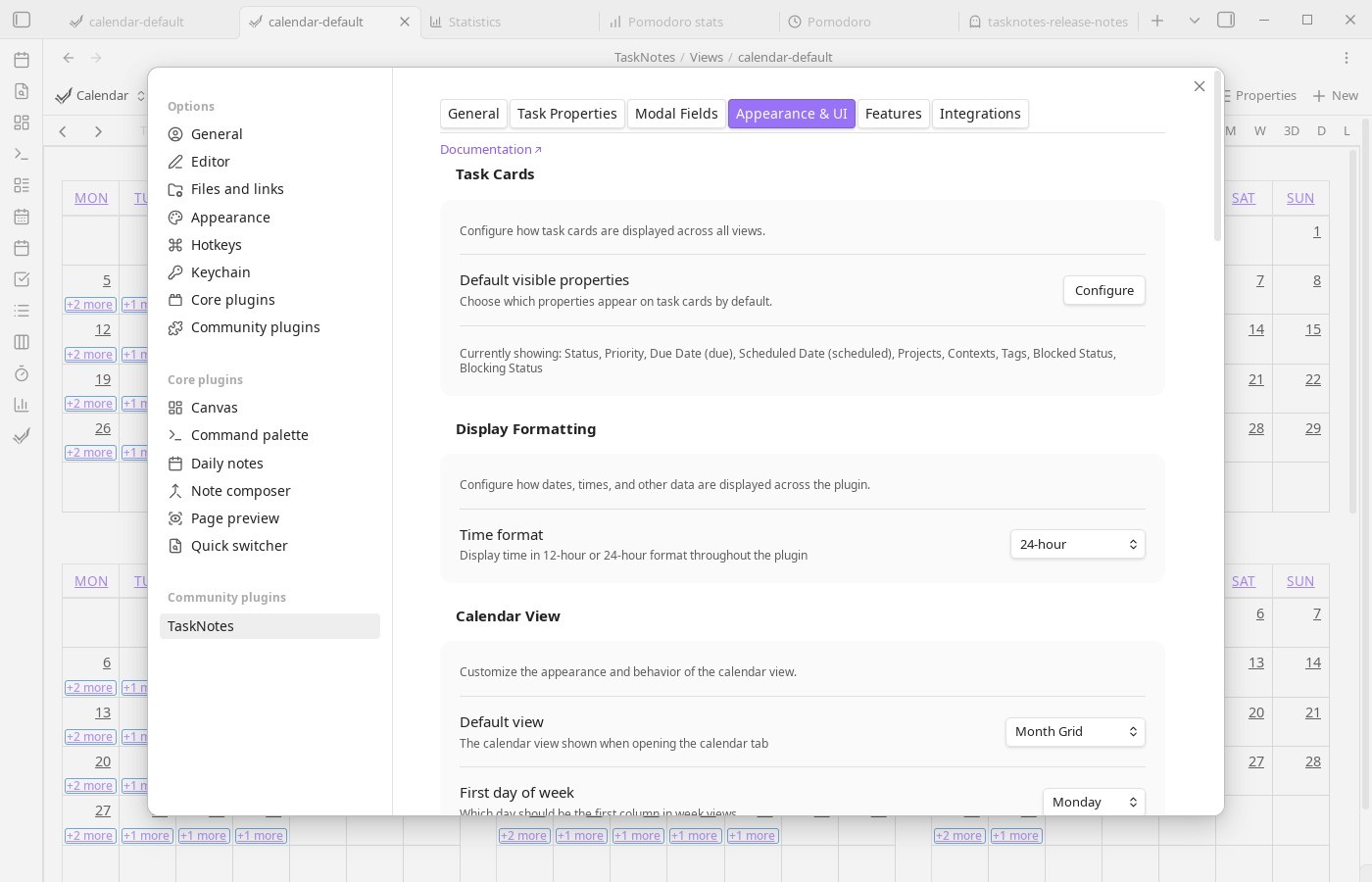
Task Cards#
Use Default visible properties to decide what metadata appears on task cards without opening each task. This is the primary control for card density.
Checklist progress is available as a visible property in task cards. In Bases view order arrays, the corresponding source property is file.tasks (shown as tasks in Bases property pickers once present in the view order list).
Nested task cards use CSS variables for their indentation. Add a CSS snippet if you want a denser hierarchy than the default:
.tasknotes-plugin {
  --tn-nested-task-indent: 12px;
  --tn-nested-task-padding: 8px;
}

body.is-mobile .tasknotes-plugin {
  --tn-nested-task-indent: 8px;
  --tn-nested-task-padding: 6px;
}
If task links inside normal markdown lists feel visually doubled with both a list marker and the task status indicator, a CSS snippet can hide those markers for task-link lines:
.markdown-reading-view li:has(.task-inline-preview--reading-mode)::marker {
  content: "";
}

.markdown-source-view.mod-cm6 .cm-line:has(.tasknotes-inline-widget) .cm-formatting-list {
  display: none;
}
Display Formatting#
Use Time format to switch between 12-hour and 24-hour display across all TaskNotes surfaces.
Calendar View#
Calendar view settings determine the default landing mode, day/week framing, and timeline affordances. You can choose the default view, custom day span, first day of week, weekend visibility, week numbers, and whether today/current-time markers are shown. Selection mirror controls whether drag selections show a visual preview before committing.
Use Calendar locale for region-specific formatting and calendar systems (for example en, de, or fa). Leave it empty to use automatic detection.
Default Event Visibility#
This section controls which event layers are enabled when a calendar view opens. You can independently toggle scheduled tasks, due dates, due dates for already-scheduled tasks, time entries, recurring tasks, and ICS events.
Time Settings#
Time settings define the structure of timeline views: slot duration, earliest visible time, latest visible time, and initial scroll position. Use these together to match your workday shape.
UI Elements#
UI element toggles control auxiliary surfaces such as the tracked-task status bar entry, the project subtasks widget and its placement, expandable subtasks in cards, chevron position, and the alignment of the views/filters button.
Related Settings#
Some appearance-related settings are configured elsewhere:
- Task filename format: Configured in Task Properties → Title card
- Project autosuggest display: Configured in Task Properties → Projects card