Obsidian plugin · 4.13.9
Features Settings
These settings allow you to enable, disable, and configure the various features of the plugin, such as inline tasks, natural language processing, the Pomodoro timer, and notific...
These settings allow you to enable, disable, and configure the various features of the plugin, such as inline tasks, natural language processing, the Pomodoro timer, and notifications.
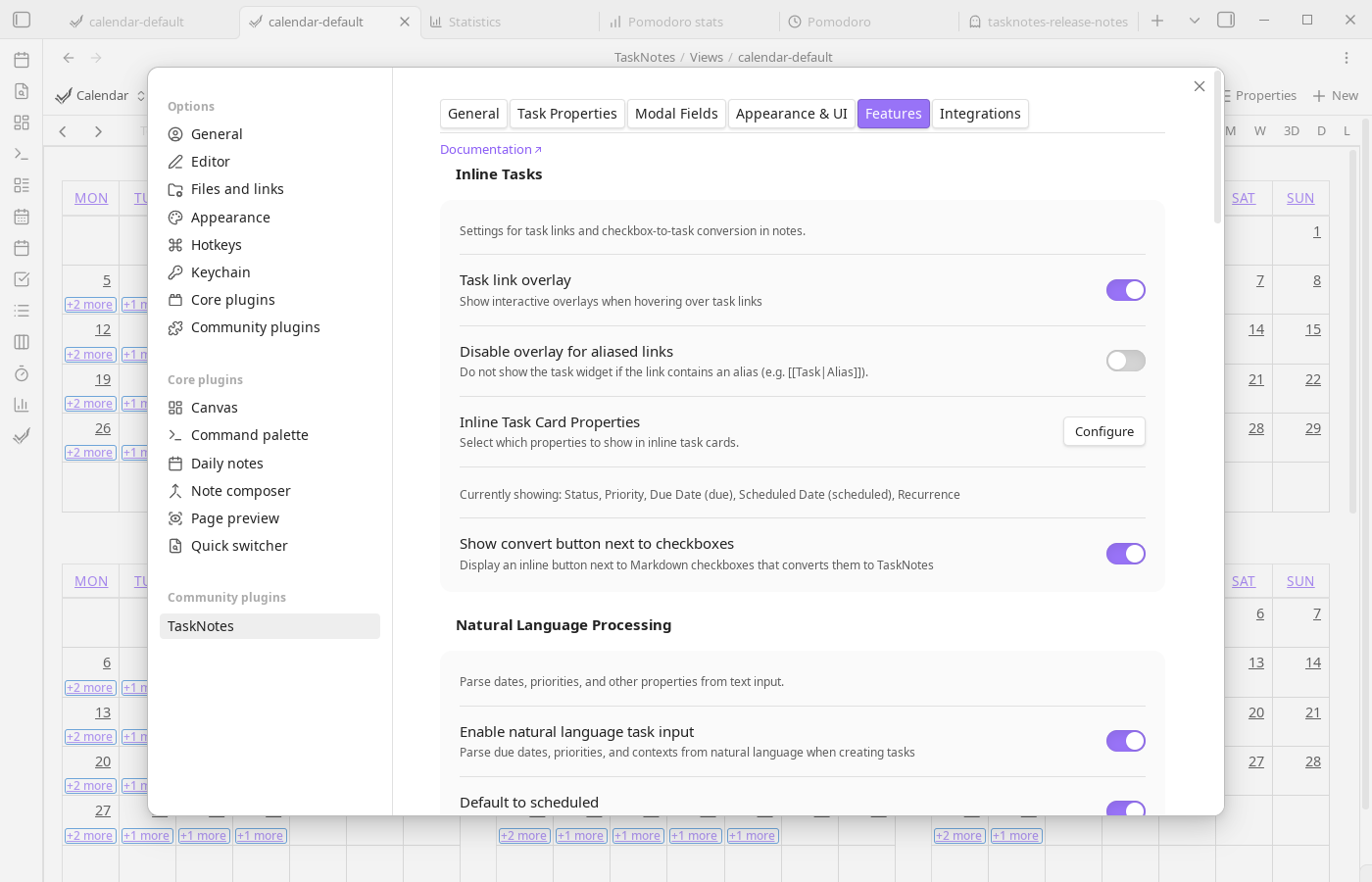
Inline Tasks#
Inline task settings control how aggressively TaskNotes turns plain note content into structured task interactions. Task link overlay enables the Live Preview card behavior for task links, while Instant task convert surfaces conversion buttons next to list items and checkboxes. Keep checkbox when converting leaves the original Markdown checkbox marker in the source note when a checkbox becomes a TaskNote link. For conversion output, Inline task convert folder sets destination behavior and supports {{currentNotePath}}, and Use task defaults on instant convert applies your default task values at conversion time.
The separate Convert current note to task command keeps the current note body as the task details. If the note has no scheduled frontmatter, the command uses the Scheduled Date default from Task Properties; it does not apply body templates.
Body Template#
Body template settings let you scaffold newly created tasks with consistent note content. When enabled, TaskNotes reads the configured template file and expands variables like {{title}}, {{date}}, {{time}}, {{priority}}, {{status}}, {{contexts}}, {{tags}}, and {{projects}}.
Materialized occurrence notes can use a separate template. Set Occurrence note template file to provide a global fallback for occurrence notes; a recurring task's occurrence_template frontmatter field takes priority when it is set. If neither occurrence-specific template is configured, occurrence notes continue through the normal body template behavior.
Natural Language Processing#
NLP settings define how text input is interpreted during task capture. Enable natural language task input activates date and metadata parsing, Default to scheduled changes ambiguous date handling, NLP language selects parsing patterns, and Status suggestion trigger controls optional status autocomplete activation.
Wrap text in double quotes, single quotes, or backticks to keep it as literal title text during NLP parsing. For example, BIO "123H" - HW1 keeps 123H in the title instead of treating it as a 123-hour estimate, while Review "Today" notes keeps Today as text instead of parsing it as a date.
Pomodoro Timer#
Pomodoro settings control interval lengths, long-break cadence, optional auto-start behavior, and end-of-session notifications/sound. Pomodoro data storage chooses whether history is kept in plugin data or daily notes.
Notifications#
Use this section to enable reminders globally, choose whether notices are shown in-app or through system notifications, and optionally play a built-in reminder sound with its own volume control.
Performance & Behavior#
Performance and behavior toggles let you refine overhead and interaction feel: exclude completed tasks from overdue calculations, disable indexing for very large vaults, and tune suggestion debounce timing.
Time Tracking#
Time tracking options handle completion behavior. You can automatically stop running timers when a task is completed and optionally show a confirmation notification.
Recurring Tasks#
Use Maintain due date offset in recurring tasks to keep due/scheduled spacing consistent when recurring tasks roll forward.
Occurrence note behavior is configured per recurring task from the task context menu: open Recurrence → Occurrence notes to choose manual creation or automatic creation of the next materialized occurrence after completion. See Recurring Tasks for the workflow and storage model.
Timeblocking#
Timeblocking enables lightweight daily-note scheduling blocks and controls whether those blocks are visible by default in calendar views.
Usage#
In the calendar view, click and drag on a time slot to select a time range. A context menu will appear—select "Create timeblock" to create a timeblock (this option only appears if timeblocking is enabled in settings). Drag existing timeblocks to move them. Resize edges to adjust duration.