Obsidian plugin · 4.12.3
Integrations Settings
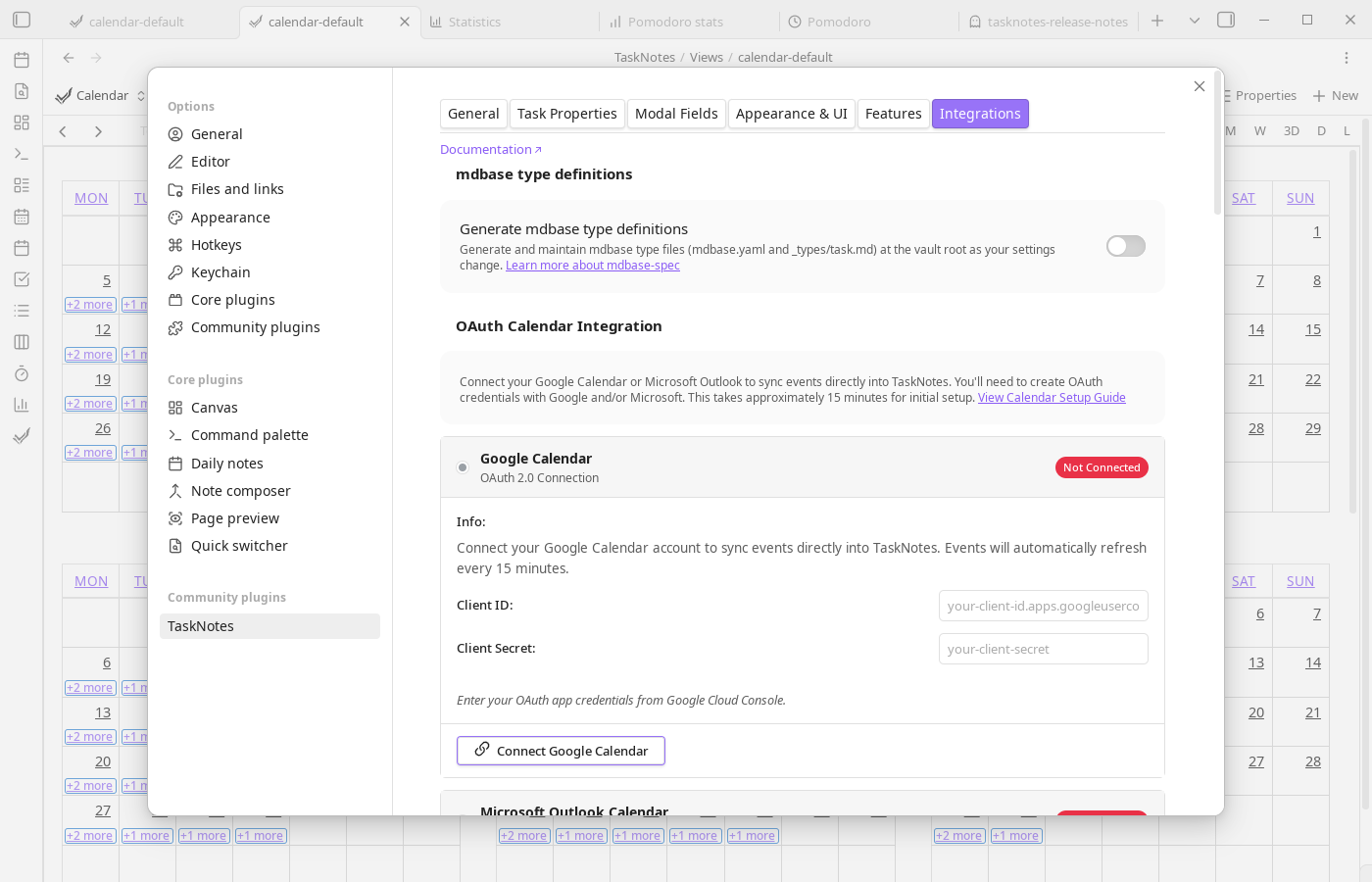
These settings control the integration with other plugins and services, such as Bases and external calendars.
These settings control the integration with other plugins and services, such as Bases and external calendars.
Bases#
TaskNotes v4 uses Obsidian's Bases core plugin for its main views. For setup instructions, see Core Concepts.
View Commands Configuration#
View command settings map TaskNotes commands and ribbon actions to specific .base files. This is useful when you maintain custom variants of the default views and want first-class command access to those files.
Access these settings in Settings → TaskNotes → General → Views & base files.
Default mappings:
- Open Mini Calendar View →
TaskNotes/Views/mini-calendar-default.base - Open Kanban View →
TaskNotes/Views/kanban-default.base - Open Tasks View →
TaskNotes/Views/tasks-default.base - Open Calendar View →
TaskNotes/Views/calendar-default.base - Open Agenda View →
TaskNotes/Views/agenda-default.base - Pomodoro Statistics Base →
TaskNotes/Views/pomodoro-stats.base - Relationships Widget →
TaskNotes/Views/relationships.base
Each command allows you to specify a custom .base file path and includes a reset button to restore the default path.
Auto-create default files: When enabled, TaskNotes creates missing default .base files automatically on startup.
Create files: Button to generate all default .base files in the TaskNotes/Views/ directory. Existing files are not overwritten.
The generated Pomodoro statistics Base reads Pomodoro sessions from daily notes frontmatter. If your Pomodoro history is still stored in plugin data, migrate it from Settings → TaskNotes → Features before using that Base file.
OAuth Calendar Integration#
Connect Google Calendar or Microsoft Outlook to sync events bidirectionally with TaskNotes. Events automatically refresh every 15 minutes and sync when local changes are made (such as dragging events to reschedule).
Enable Disable calendar integrations on mobile when you sync TaskNotes settings between desktop and mobile but do not want Obsidian Mobile to load external calendars on startup. The setting only affects mobile devices; desktop calendar integrations continue to run normally.
Setup Requirements#
OAuth integration requires creating your own OAuth application with Google and/or Microsoft. Initial setup takes approximately 15 minutes per provider.
Setup Guide: See Calendar Integration Setup for detailed instructions on creating OAuth credentials with Google Cloud Console and Azure Portal.
Google Calendar#
Provide Client ID and Client Secret from Google Cloud Console, then use Connect Google Calendar to complete OAuth loopback authentication. Disconnect revokes account tokens while retaining the OAuth app credentials for reconnection. Use Forget saved credentials to remove the client ID and client secret.
The Target calendar setting used for exporting tasks to Google Calendar is also used as the default selection when creating a manual external calendar event from the calendar view. If the target calendar is unavailable, TaskNotes falls back to the provider's primary calendar.
For timed task exports, Default reminder accepts one or more minute offsets separated by commas, such as 60, 1440. All-day task exports use the target Google Calendar's default reminder settings.
When connected, displays:
- Connected account email
- Connection time
- Last sync time
- Manual refresh button
Microsoft Outlook Calendar#
Provide Client ID and Client Secret from Azure App Registration, then use Connect Microsoft Calendar to authenticate. Disconnect revokes account tokens while retaining the OAuth app credentials for reconnection. Use Forget saved credentials to remove the client ID and client secret.
When connected, displays:
- Connected account email
- Connection time
- Last sync time
Security#
- OAuth client credentials and account tokens are stored in Obsidian Secret Storage, which is encrypted at rest when supported by the operating system
- OAuth credentials and account tokens are not written to TaskNotes'
data.json - Access tokens refresh automatically
- Calendar data syncs directly between Obsidian and the calendar provider (no intermediary servers)
- Disconnect at any time to revoke account access; use Forget saved credentials to remove the OAuth app credentials
Calendar subscriptions (ICS)#
ICS settings define how subscribed calendar events are represented in your vault. You can set a default template, destination folder, filename strategy, and custom filename template for generated notes. Use Add Calendar Subscription to register URLs or local files, and Refresh all subscriptions for manual synchronization.
Recurring event related notes controls how notes linked from recurring external calendar events are matched. Series-wide keeps the current behavior: a note linked to one loaded recurrence can appear on the other loaded recurrences from the same Google, Microsoft, or ICS event series. Selected instance only limits related notes and counts to the exact recurrence instance that was linked.
Automatic ICS export#
Automatic export keeps an ICS feed of your tasks updated on a schedule. Configure whether it is enabled, where the file is written (vault-relative path), the refresh interval, and use Export now for immediate output.
Export filters can omit archived tasks, completed tasks, tasks without due dates, or tasks without scheduled dates. When both due-date and scheduled-date requirements are enabled, exported tasks must have both dates.
HTTP API#
HTTP API settings control the local server lifecycle, listening port, and request authentication token.
Changes to API enablement or port require an Obsidian restart to take effect.
Webhooks#
- Add Webhook: Register a new webhook endpoint.