Task Reminders
TaskNotes reminders use iCalendar VALARM semantics and support both relative and absolute reminder types.
The reminders system is designed to support both habit-like workflows ("always remind me 15 minutes before") and one-off commitments ("alert me exactly at this date and time"). Most users mix both styles depending on the task.
Reminder Types
Relative Reminders
Relative reminders trigger from due or scheduled dates.
Use relative reminders when you want reminder behavior to stay consistent even when task dates change.
Examples:
- 15 minutes before due date
- 1 hour before scheduled date
- 2 days before due date
- 30 minutes after scheduled date
Absolute Reminders
Absolute reminders trigger at a fixed date/time.
Use absolute reminders when the reminder itself is tied to a specific moment, independent of task rescheduling.
Examples:
- October 26, 2025 at 9:00 AM
- Tomorrow at 2:30 PM
- Next Monday at 10:00 AM
Adding Reminders
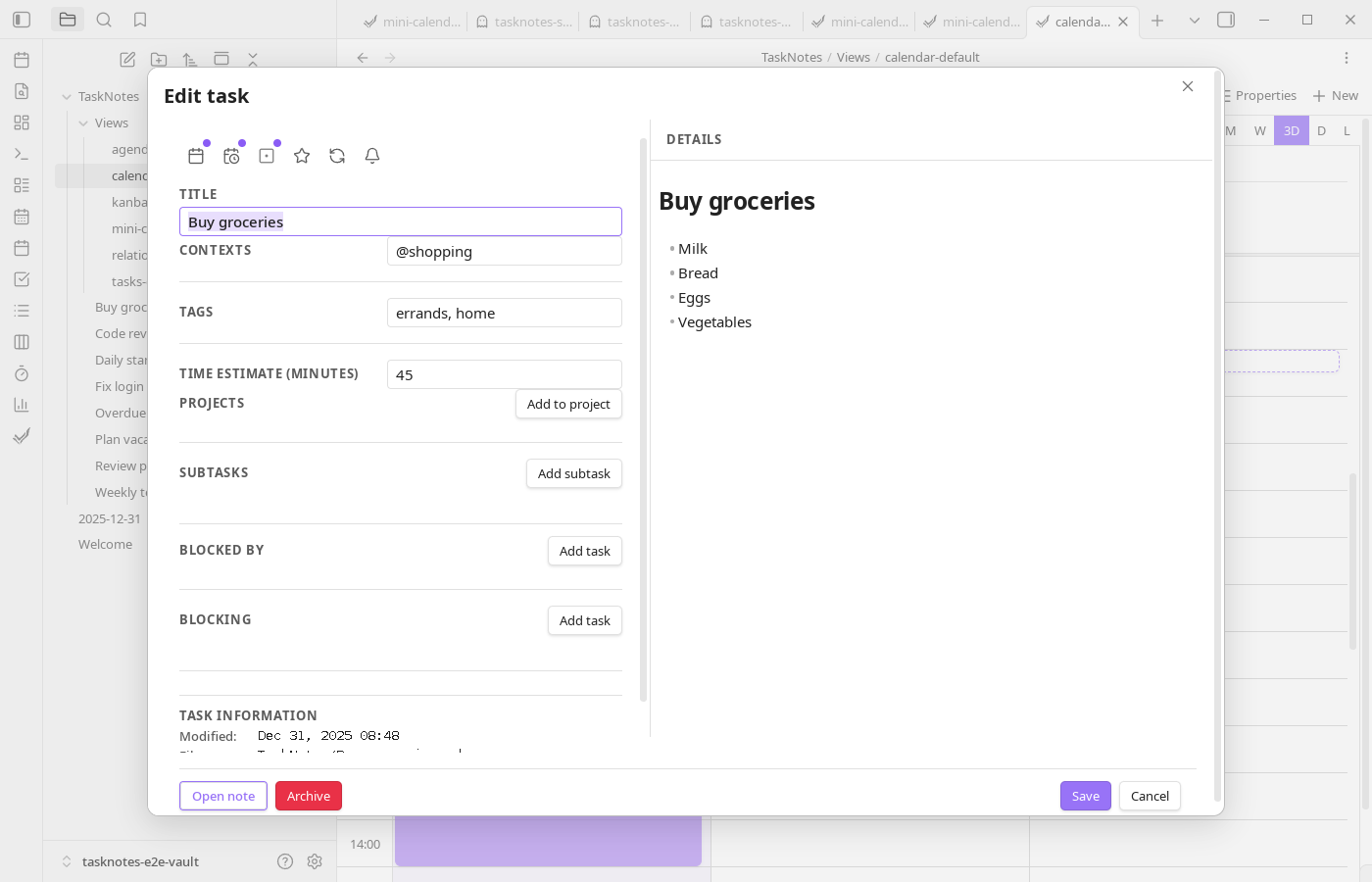
You can add reminders from:
- Task Creation Modal
- Task Edit Modal
- Task Cards (bell icon)
- Reminder field context menu
From a workflow perspective, task cards and context menus are fastest for quick reminders, while task modals are better for reviewing multiple reminders on the same task.
Quick Reminder Options
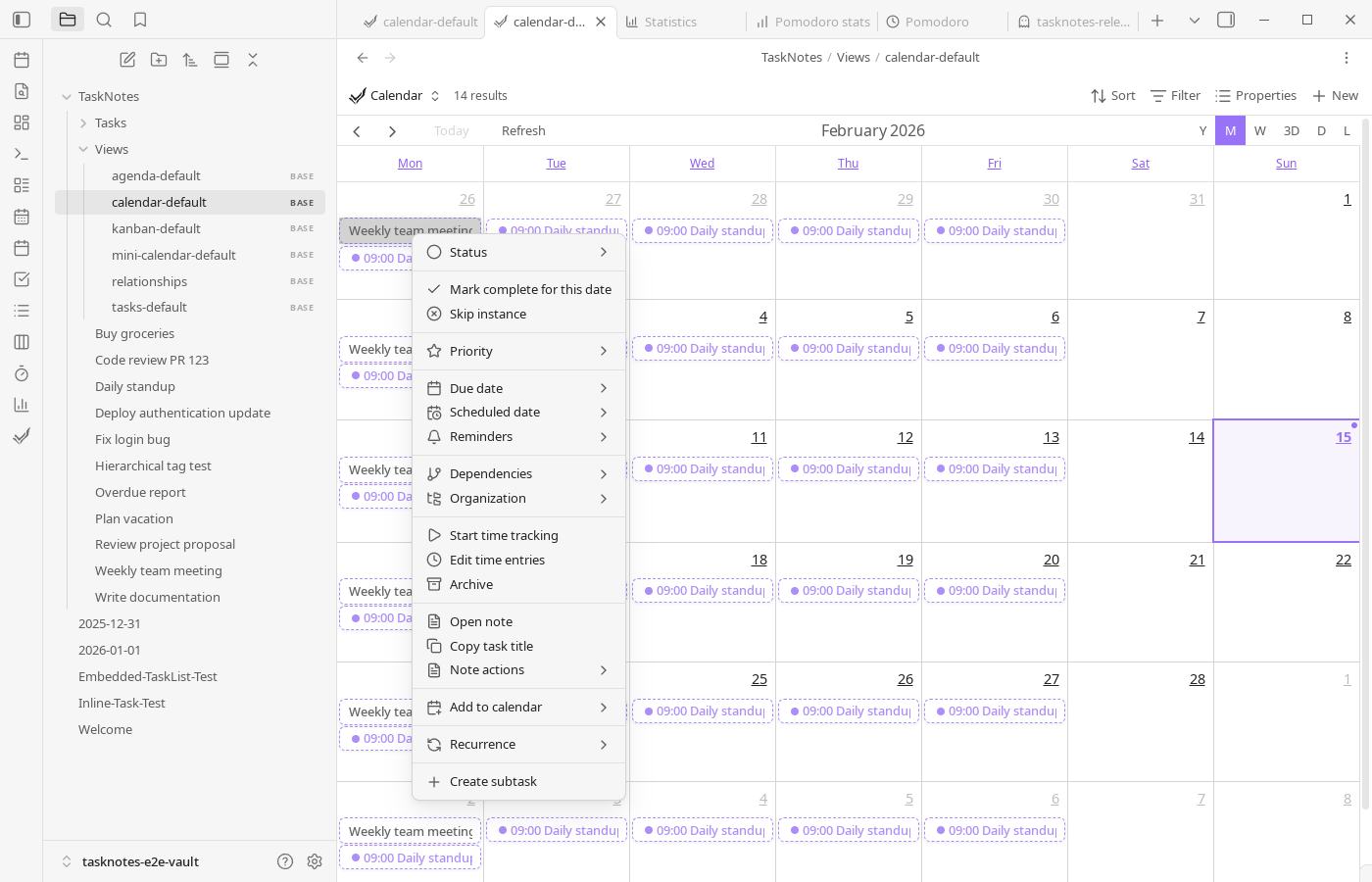
Common shortcuts are available for both due and scheduled anchors, such as:
- 5 minutes before
- 15 minutes before
- 1 hour before
- 1 day before
Quick options appear only when the anchor date exists.
This prevents invalid reminder states and keeps the quick menu focused on options that can be applied immediately.
Reminder Data Format
Reminders are stored in YAML frontmatter arrays.
Because reminders are stored in frontmatter, they remain portable and scriptable. You can inspect or transform reminder data with any tooling that reads Markdown + YAML.
Relative Structure
reminders:
  - id: "rem_1678886400000_abc123xyz"
    type: "relative"
    relatedTo: "due"
    offset: "-PT15M"
    description: "Review task details"
Absolute Structure
reminders:
  - id: "rem_1678886400001_def456uvw"
    type: "absolute"
    absoluteTime: "2025-10-26T09:00:00"
    description: "Follow up with client"
Field meanings:
id: unique identifiertype:relativeorabsoluterelatedTo:dueorscheduled(relative only)offset: ISO 8601 duration, negative before and positive after (relative only)absoluteTime: ISO 8601 timestamp (absolute only)description: optional message
You typically do not need to edit these fields manually, but understanding the structure helps when debugging automation or importing task data.
Visual Indicators
Tasks with reminders show a bell icon on task cards.
- Solid bell indicates active reminders
- Clicking opens quick reminder actions
- Reminder UI shows task context (due/scheduled dates and reminder count)
These indicators are intended to make reminders discoverable in list-heavy views without opening every task.
Default Reminders
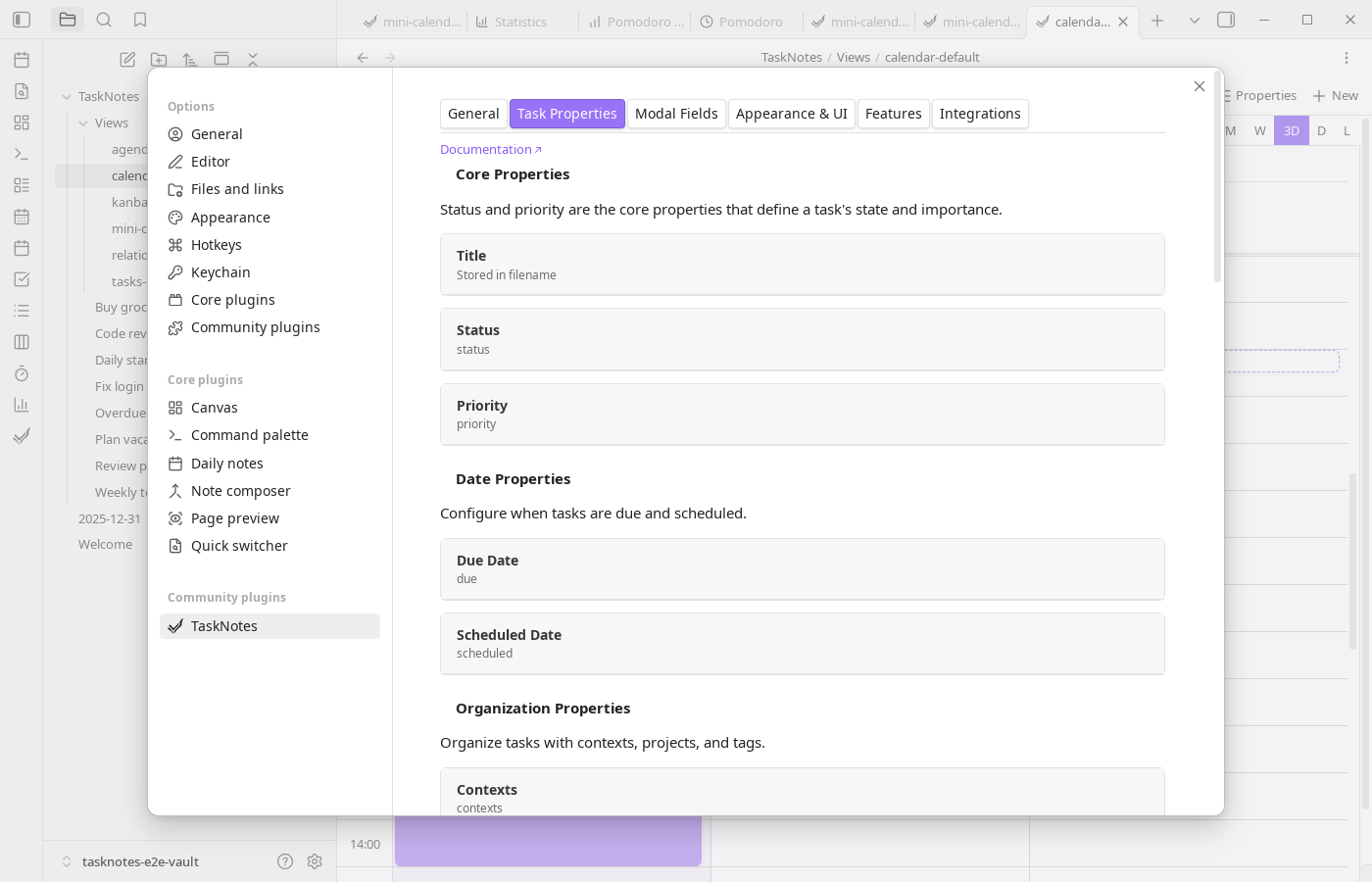
Default reminders can be configured in:
Settings → TaskNotes → Task Properties → Reminders
Defaults are applied to:
- Manual task creation
- Instant conversion
- Natural language task creation
Default reminders are best for recurring operating habits, such as pre-deadline checks or day-before planning prompts.
Technical Notes
- Reminders follow iCalendar
VALARMconcepts with ISO 8601 offsets - The reminder property name can be customized through field mapping
For settings-level behavior (notification channels, enable/disable state), see Features Settings.