Calendar Views
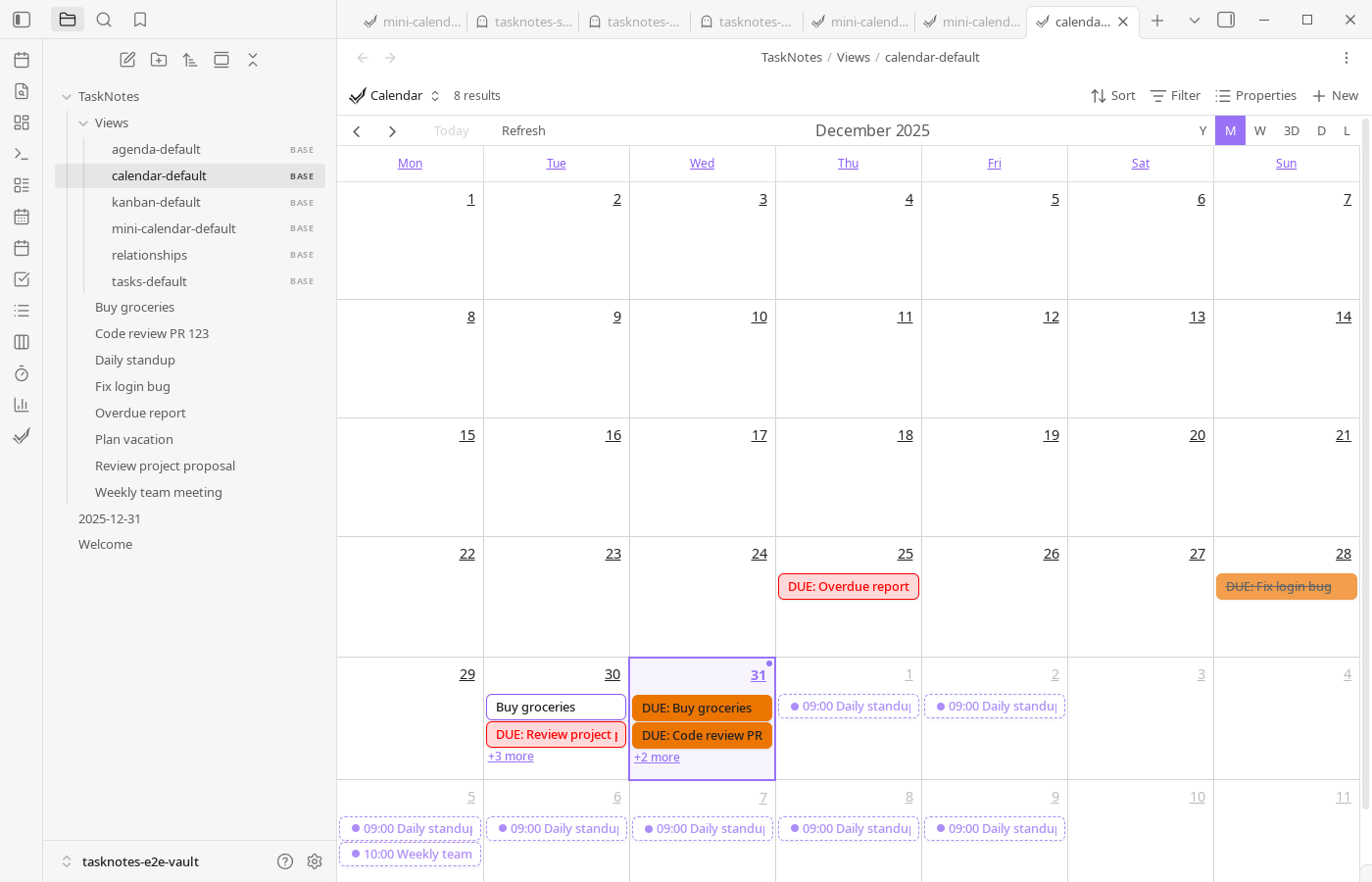
TaskNotes provides two calendar-based views: the Mini Calendar and the Calendar View. Both operate as Bases views (.base files) and require the Bases core plugin to be enabled in Obsidian.
Mini Calendar is date-density and navigation focused, while Calendar View is scheduling focused.
Bases View Architecture
Calendar views in TaskNotes v4 are implemented as Bases views, which means:
- Calendar views are created as
.basefiles in your vault - Configuration is controlled through YAML frontmatter in the base file
- The Bases plugin is an official Obsidian core plugin and must be enabled
- Views can be opened in tabs, pinned, and managed like other Obsidian views This architecture makes calendar behavior auditable. Filters, formulas, and display options are stored with the view file, so they are versionable and easy to share across vault setups.
Mini Calendar View
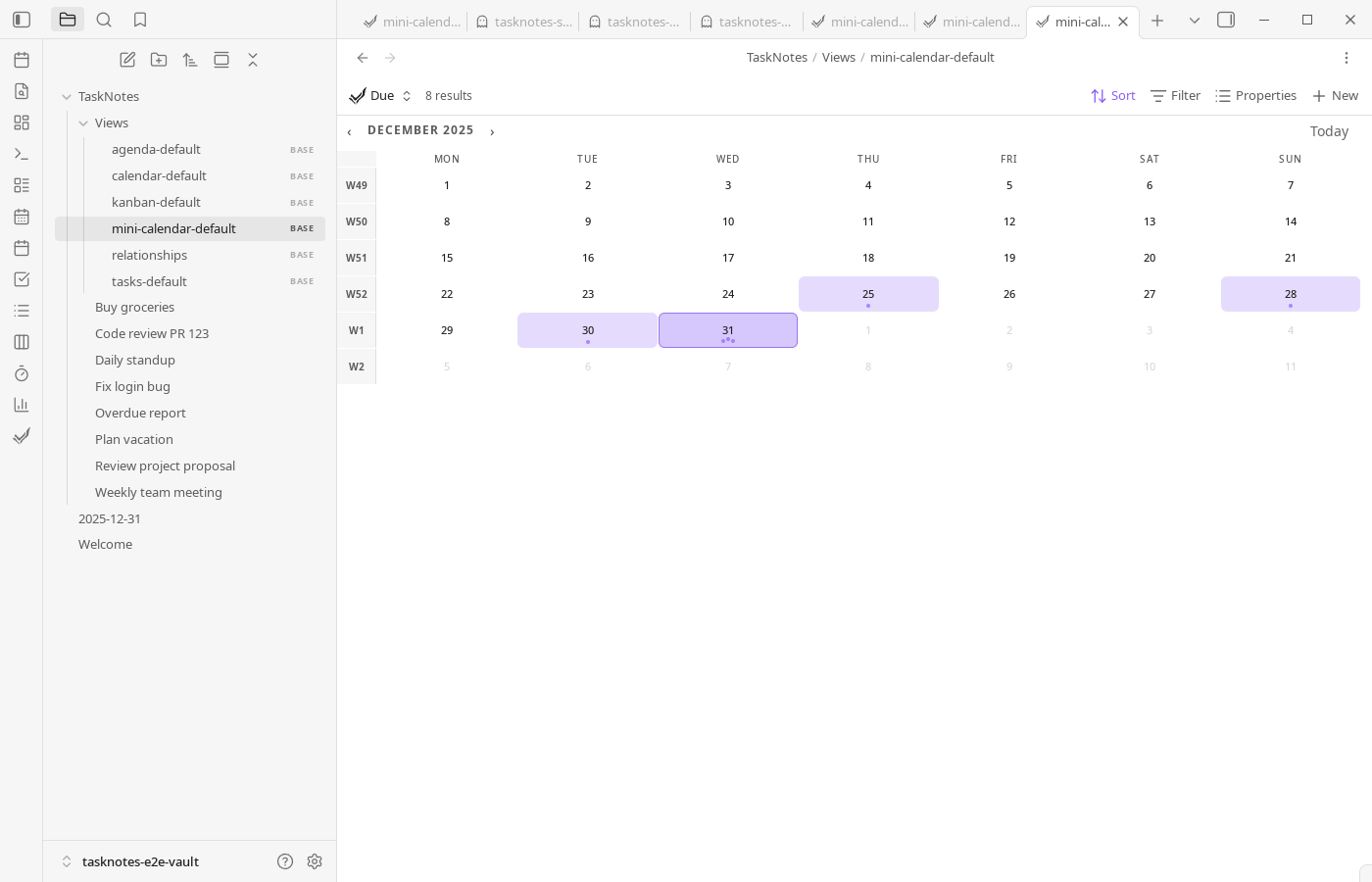
The Mini Calendar displays a month-based view that shows which days contain tasks or other dated notes. It provides navigation and an overview of your task distribution across time.
Features
- Date Navigation: Click any date to open a fuzzy selector modal showing all notes associated with that date
- Keyboard Navigation: Navigate the calendar using arrow keys and select dates with Enter
- Heatmap Styling: Visual indicators show the density of tasks or notes on each day
- Configurable Date Property: Set which date property to track (not limited to tasks - can display any dated notes based on configured property)
- Month Navigation: Browse forward and backward through months to view historical and future task distribution Mini Calendar is commonly used as an entry view: select a date, then open Task List, Agenda, or Calendar for execution.
Calendar View
The Calendar View provides multiple view modes (month, week, day, year, list, and custom days) with drag-and-drop scheduling and time-blocking capabilities. Tasks can be created by clicking on dates or time slots, and rescheduled by dragging them to new dates or times.
View Modes
The Calendar View supports the following view modes:
- Month: Month grid showing all-day and timed events
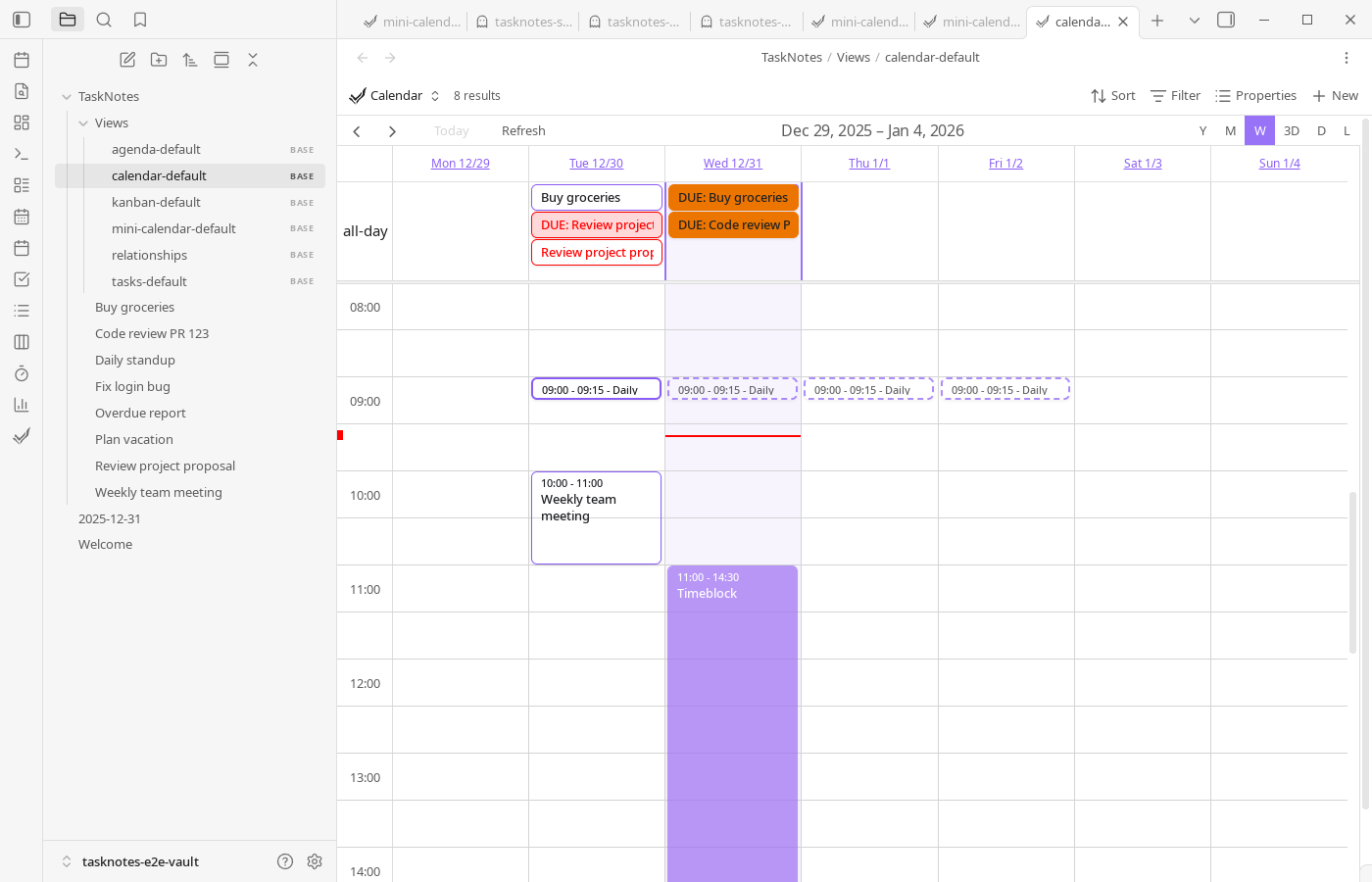
- Week: Week view with hourly time slots for detailed scheduling
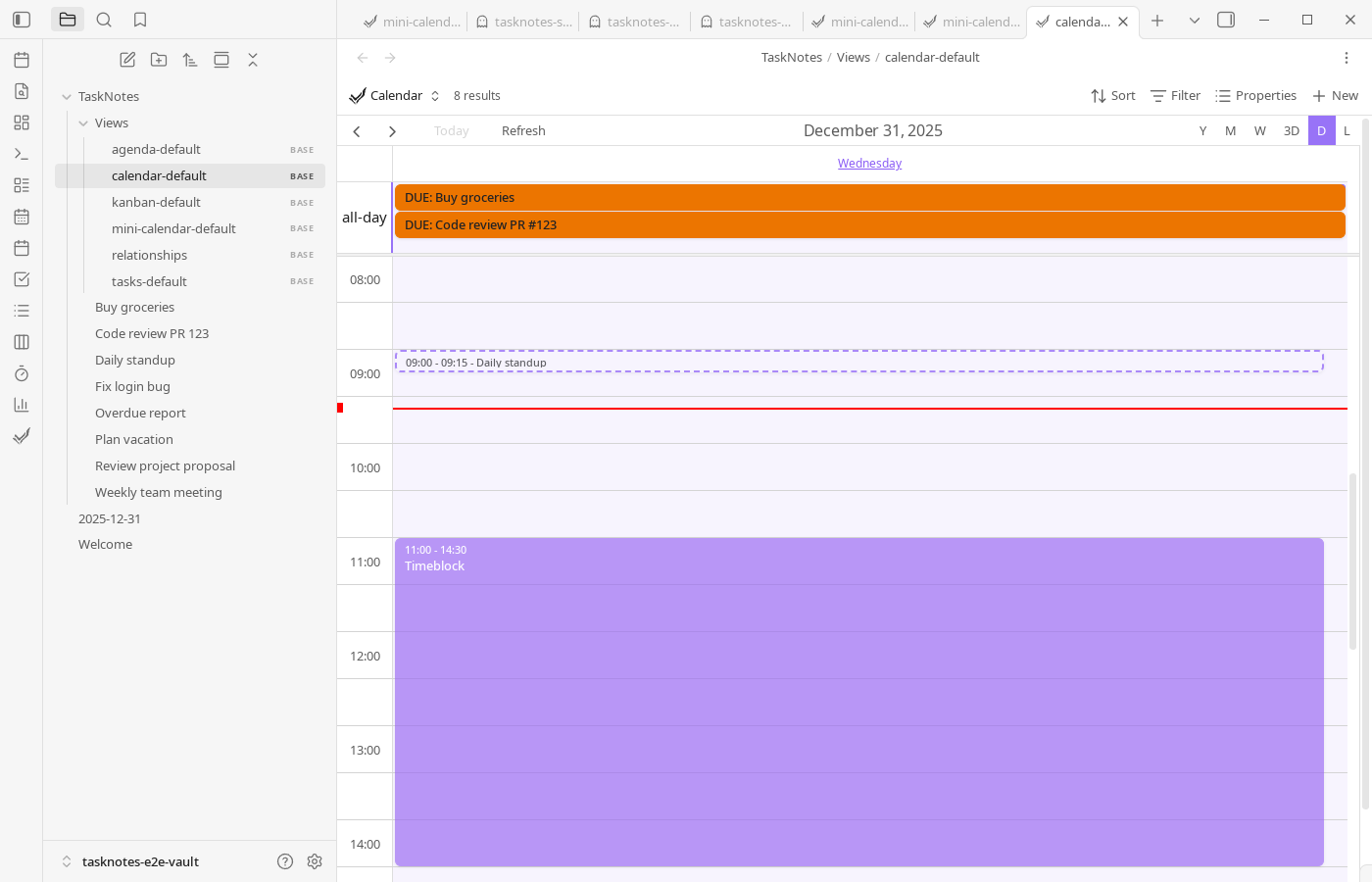
- Day: Single day view with hourly breakdown
- Year: Annual overview showing event distribution across months
- List: Chronological list of events. TaskNotes also includes a dedicated Agenda command that opens this mode via its own
.basefile for quick reviews. - Custom Days: Configurable multi-day view (2-10 days)
View modes can be switched within a single
.basefile based on planning horizon (day, week, month, year, or custom range).
| Week View | Day View | Year View |
|---|---|---|
 |
 |
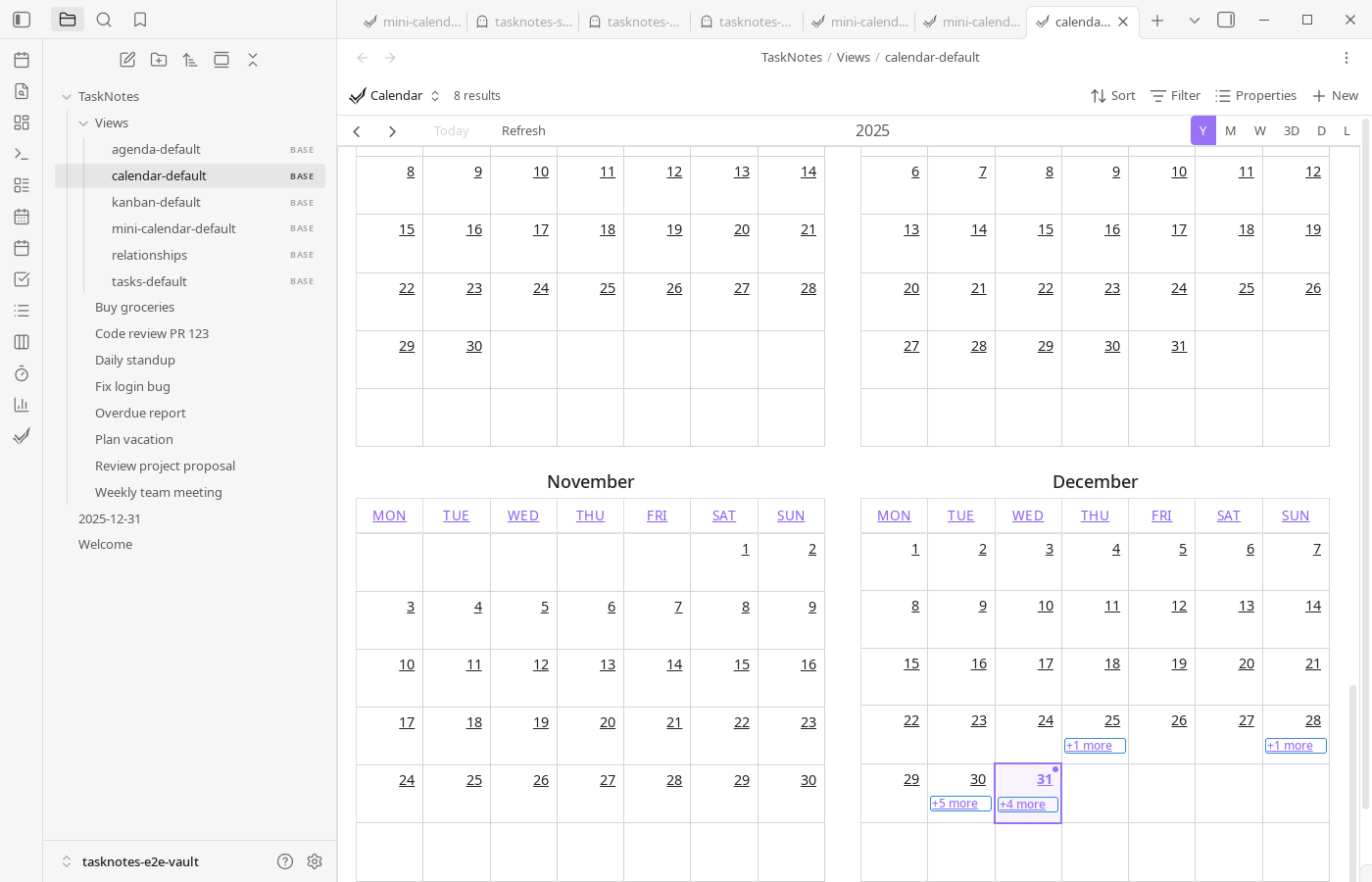 |
Performance Improvements
The Calendar View uses virtual scrolling to maintain performance when displaying large numbers of events. This allows the calendar to handle extensive task lists and long time ranges without degradation in responsiveness.
Custom Days View
The Custom Days view provides a configurable multi-day calendar that displays between 2-10 days at once. This view addresses screen space utilization by offering a middle ground between the single-day view and the full week view.
Key Features
- Configurable Duration: Set the number of days to display (2-10 days) via Settings > Calendar > Custom view day count
- TimeGrid Format: Uses the same hourly time slots and time-based event layout as Week and Day views
- Real-time Updates: The view updates immediately when the day count setting is changed
- Default Configuration: Ships with 3 days displayed by default for optimal space utilization
Use Cases
The Custom Days view is particularly useful for:
- Users who find the single-day view too wide and wasteful of screen space
- Planning workflows that require seeing a few days at a glance without the full week
- Detailed scheduling tasks that benefit from the time-grid format
- Customizing the viewing window to match personal preference and screen size
Configuration
- Select the View: Choose "Custom Days" from the calendar toolbar alongside Month, Week, Day, and Year views
- Adjust Day Count: Navigate to Settings > Calendar > Custom view day count and use the slider to select 2-10 days
- Set as Default: Optionally set "Custom Days" as your default view in Settings > Calendar > Default view
Recurring Task Support
The Calendar View provides recurring task management with visual hierarchy and drag-and-drop behavior.
Visual Hierarchy
Recurring tasks are displayed with distinct visual styling:
- Next Scheduled Occurrence: Solid border with full opacity, representing the specific date/time when you plan to work on the next instance
- Pattern Instances: Dashed border with reduced opacity (70%), showing preview of when future recurring instances will appear based on the DTSTART and recurrence rule
Drag and Drop Behavior
The calendar provides different behaviors depending on which type of recurring event you drag:
Dragging Next Scheduled Occurrence (Solid Border):
- Updates only the
scheduledfield in the task - Reschedules just that specific occurrence to the new date/time
- Leaves the recurrence pattern unchanged
- Notice: "Rescheduled next occurrence. This does not change the recurrence pattern."
Dragging Pattern Instances (Dashed Border):
- Updates the DTSTART time in the recurrence rule
- Changes when all future pattern instances appear
- Does not affect the independently scheduled next occurrence
- Notice: "Updated recurring pattern time. All future instances now appear at this time."
Flexible Scheduling
The next scheduled occurrence can appear on any date, even:
- Before the DTSTART date
- On days that don't match the recurring pattern (e.g., Tuesday for a weekly Monday pattern)
- At different times than the pattern instances
This flexibility allows for complete control over both the recurring pattern and individual occurrence scheduling.
View Options
The Calendar View provides several display options that control what types of events appear on the calendar:
- Show scheduled: Display tasks with scheduled dates
- Show due: Display tasks with due dates
- Show timeblocks: Display time-blocking entries
- Show recurring: Display recurring task events
- Show ICS events: Display events from imported ICS calendars
- Show time entries: Display time tracking entries
- All-day slot: Show or hide the all-day event area at the top of time grid views (Week, Day, and Custom views)
- Span tasks between scheduled and due dates: Display tasks as multi-day bars spanning from their scheduled date to their due date (see below) Multiple saved calendar views can store different option sets (for example planning vs focus), avoiding repeated manual toggles.
The All-day slot option is particularly useful when you have many all-day tasks on a single date, as hiding it can resolve scrolling issues and make the hourly time slots more accessible. When disabled, all-day events will not be displayed in time grid views, but they will still appear in month view.
Multi-Day Task Spans
The Span tasks between scheduled and due dates option provides a visual representation of task duration on the calendar. When enabled:
- Tasks with both a scheduled date and a due date display as a single bar spanning across all days from the scheduled date to the due date
- This replaces the separate scheduled and due markers for qualifying tasks
- Tasks with only a scheduled date or only a due date continue to display as single-day events
- Span events are shown as all-day bars with the task's priority color
- Span events are read-only on the calendar (edit the underlying scheduled/due dates to modify)
This option is useful for project planning and visualizing how long tasks are expected to take, similar to Gantt chart-style views.
These display options are preserved when you save a view, allowing you to create specialized calendar views that show only specific types of events and maintain those preferences across sessions.
OAuth Calendar Integration
The Calendar View supports bidirectional synchronization with external calendar services through OAuth authentication:
- Google Calendar: Connect to Google Calendar accounts to display and sync events
- Microsoft Outlook: Connect to Microsoft Outlook accounts for calendar integration
Synchronization Behavior
- External calendar events appear alongside TaskNotes tasks in all calendar views
- Drag and drop events to reschedule them - changes sync back to the external calendar service
- Events from external calendars respect the same view options and display settings as native TaskNotes tasks
Configuration
OAuth calendar connections are configured through the TaskNotes settings panel. Authentication uses standard OAuth flows to securely connect to external services.
Time Entry Editor Modal
The Calendar View includes a Time Entry Editor Modal for creating time tracking entries directly from the calendar interface.
Creating Time Entries
- Drag on the calendar to select a time range
- When the selection menu appears, choose Create time entry
- The modal opens with the start and end times pre-populated based on the selection, and the entry can be linked to a task or left standalone
Editing Time Entries
Time entries displayed on the calendar can be selected to open the Time Entry Editor Modal for modification. The modal provides fields for adjusting start time, end time, associated task, and other time entry metadata.
Filtering and View Configuration
Calendar filtering is configured through the Bases YAML frontmatter in the .base file. This allows you to define which tasks and events appear in each calendar view. Filtering options include task properties, date ranges, tags, and other criteria supported by the Bases plugin.
Saved calendar views retain their filter configuration, display options, and view mode, allowing you to create specialized calendar views for different purposes.