Task List View
The Task List View displays tasks in a scrollable list format with filtering, sorting, and grouping capabilities. In TaskNotes v4, this view operates as a Bases view configured through YAML. This view is optimized for high task volume and explicit filter definitions.
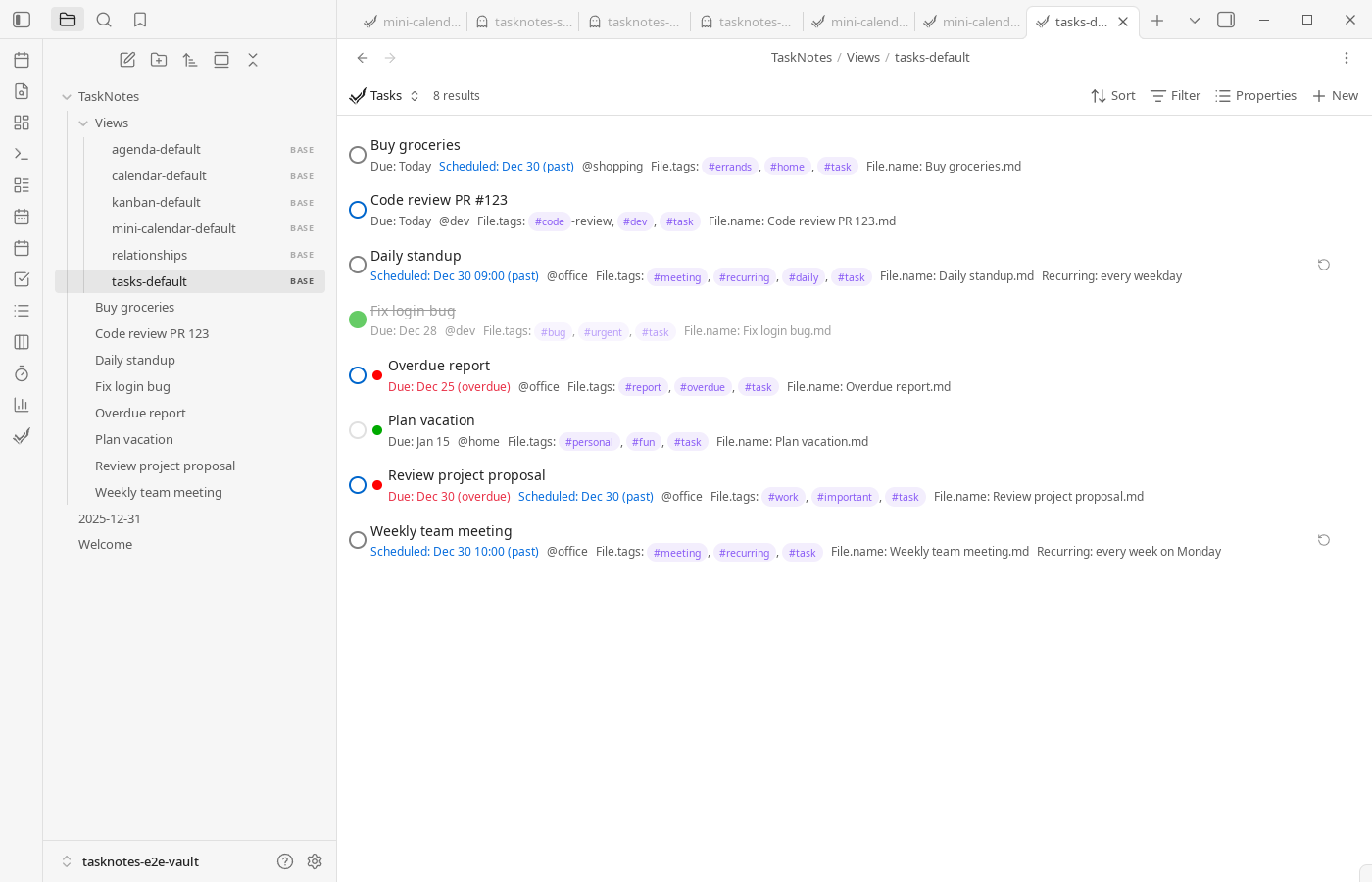
Bases Architecture
Task List is implemented as a .base file located in TaskNotes/Views/tasks-default.base by default. It requires the Bases core plugin to be enabled.
What is Bases?
Bases is an official Obsidian core plugin built directly into Obsidian (not a community plugin). It provides a framework for creating database views of notes and tasks.
To enable Bases:
- Open
Settings -> Core Plugins - Enable "Bases"
- TaskNotes view commands will now open
.basefiles fromTaskNotes/Views/If commands open empty or unexpected views, first confirm Bases is enabled and the command path points to the intended.basefile.
View File Location
When you use the "Open Tasks View" command or ribbon icon, TaskNotes opens the .base file configured under Settings -> TaskNotes -> General (View Commands) (initially TaskNotes/Views/tasks-default.base). The default file is created automatically the first time you use the command, and you can point the command to any other .base file if you maintain multiple task-list layouts.
Configuration
Task List views are configured through YAML frontmatter in the .base file. The YAML defines which tasks to show, how to sort them, and how to group them.
Basic Structure
# All Tasks

views:
  - type: tasknotesTaskList
    name: "All Tasks"
    order:
      - note.status
      - note.priority
      - note.due
      - note.scheduled
      - note.projects
      - note.contexts
      - file.tags
    sort:
      - column: due
        direction: ASC
Configuration Options
type: Must be tasknotesTaskList for Task List views
name: Display name shown in the view header
order: Array of property names that control which task properties are visible in the task cards. Properties are referenced using their Bases property paths (e.g., note.status, note.priority, note.due, file.tasks).
For existing .base files, add file.tasks in YAML manually; once present in order, it appears in the Bases picker as tasks.
sort: Array of sort criteria. Tasks are sorted by the first criterion, with ties broken by subsequent criteria.
column: Property to sort by (e.g.,due,scheduled,priority,title)direction:ASC(ascending) orDESC(descending)
groupBy: Optional grouping configuration
property: Property to group by (e.g.,note.status,note.priority)direction: Sort direction for group headers
filters: Optional filter conditions using Bases query syntax
filters:
  and:
    - note.status == "Open"
    - note.priority == "High"
Start with one or two simple filters, verify results, then layer complexity. Incremental edits are much easier to debug than large one-shot query rewrites.
Property Mapping
TaskNotes properties are accessed in Bases YAML using these paths:
| TaskNotes Property | Bases Property Path | Description |
|---|---|---|
| Status | note.status |
Task status value |
| Priority | note.priority |
Priority level |
| Due date | note.due |
Due date/time |
| Scheduled date | note.scheduled |
Scheduled date/time |
| Projects | note.projects |
Associated projects |
| Contexts | note.contexts |
Task contexts |
| Tags | file.tags |
File tags |
| Checklist progress | file.tasks |
First-level markdown checkbox progress shown as the TaskNotes checklist progress bar |
| Time estimate | note.timeEstimate |
Estimated duration |
| Recurrence | note.recurrence |
Recurrence pattern |
| Blocked by | note.blockedBy |
Blocking dependencies |
| Title | file.name |
Task title (file name) |
| Created | file.ctime |
File creation date |
| Modified | file.mtime |
File modification date |
The exact property names depend on your TaskNotes field mapping settings (Settings -> TaskNotes -> Task Properties). The table above shows default mappings.
Filtering and Sorting
Adding Filters
Edit the .base file to add filter conditions using Bases query syntax:
views:
  - type: tasknotesTaskList
    name: "High Priority Tasks"
    filters:
      and:
        - note.priority == "High"
        - note.status != "Completed"
    order:
      - note.status
      - note.priority
      - note.due
Filter Operators
Bases supports standard comparison operators:
==(equals),!=(not equals)>,<,>=,<=(comparison)contains()(substring/array membership)- Boolean logic:
and,or
For detailed filter syntax, see the Bases documentation.
Sorting Examples
Single sort criterion:
sort:
  - column: due
    direction: ASC
Multiple sort criteria:
sort:
  - column: priority
    direction: DESC
  - column: due
    direction: ASC
  - column: title
    direction: ASC
Drag-to-Reorder
Task List supports drag-to-reorder when the view is sorted by the manual-order property. With the default field mapping, that property is tasknotes_manual_order.
To enable persistent manual ordering in a Task List view:
sort:
  - column: tasknotes_manual_order
    direction: DESC
Once the first sort criterion is the manual-order property, you can drag task cards to reorder them. TaskNotes writes updated LexoRank-style values into task frontmatter so the order persists across refreshes and sessions.
If your field mapping changes the sort-order property name, use that mapped property name instead of tasknotes_manual_order.
Drag-to-Reorder with Grouping
Grouped Task List views can also be reordered, but the reorder scope is the current group. For example, when grouping by status, dragging within the "In Progress" group updates the manual order for tasks in that group.
Important constraints:
- Drag-to-reorder only works when the view sort includes the manual-order property.
- Reordering in formula-based groups is blocked because formula values are computed and cannot be edited directly.
- In filtered or partially visible lists, TaskNotes may also update hidden or filtered notes in the same reorder scope to preserve a stable persistent order.
- Large reorder operations may show a confirmation dialog before writing changes.
The default generated TaskNotes task-list templates include a Manual Order view that is already configured for this behavior.
Grouping
Groups organize tasks under collapsible headers based on a property value.
Enable Grouping
Add groupBy configuration to your view:
views:
  - type: tasknotesTaskList
    name: "Tasks by Status"
    groupBy:
      property: note.status
      direction: ASC
    order:
      - note.status
      - note.priority
      - note.due
Available Grouping Properties
Common grouping properties:
note.status- Group by task statusnote.priority- Group by priority levelnote.contexts- Group by first contextnote.projects- Group by project (tasks can appear in multiple groups)
Interactive Group Headers
Group headers support interaction:
- Click to expand/collapse the group
- Click on project links in headers to navigate to project notes
- Hover over project links with Ctrl to preview project notes
Collapsed State Persistence
Collapsed/expanded state for each group is preserved across sessions.
Creating Multiple Views
You can create multiple .base files for different task perspectives:
- Duplicate an existing
.basefile inTaskNotes/Views/ - Rename it (e.g.,
High Priority.base) - Edit the YAML configuration for that view
- Open the file to see the customized view
Example: Context-Specific View
# Work Tasks

views:
  - type: tasknotesTaskList
    name: "Work Context"
    filters:
      and:
        - note.contexts.contains("work")
    groupBy:
      property: note.priority
      direction: DESC
    order:
      - note.status
      - note.priority
      - note.due
Migrating from v3 Saved Views
TaskNotes v3 stored filter configurations in plugin settings. These saved views are not automatically migrated to v4.
To recreate a v3 saved view:
- Create a new
.basefile inTaskNotes/Views/ - Translate your v3 filter conditions to Bases YAML syntax
- Configure sorting and grouping through YAML
- Save the file
The v3 FilterBar UI component no longer exists - all configuration is done through YAML editing.
Task Actions
The Task List View provides interaction with tasks through clicking and context menus:
- Click on a task: Opens the task for editing or navigates to the task note (behavior configured in
Settings -> TaskNotes -> Generalin click-action controls) - Right-click on a task: Opens a context menu with actions:
- Mark as complete
- Change priority
- Change status
- Edit dates
- Delete task
- And more
Context menu availability depends on your TaskNotes settings and task properties.
Virtual Scrolling
The Task List View automatically enables virtual scrolling when displaying 100 or more items (tasks + group headers). Virtual scrolling provides:
- Approximately 90% memory reduction for large lists
- Elimination of UI lag when scrolling through hundreds of tasks
- Smooth performance with unlimited task counts
Virtual scrolling activates automatically and requires no configuration. When active, only visible tasks are rendered to the DOM, with off-screen tasks rendered on-demand as you scroll.
Further Reading
- Default Base Templates - Complete templates for all TaskNotes views
- Bases Plugin Documentation - Official Obsidian documentation for Bases syntax and features
- Kanban View - Alternative board-based task visualization
- Calendar Views - Time-based task visualization
- Views Overview - All available TaskNotes views