Obsidian plugin · 4.14.0
Recurring Tasks
TaskNotes recurring tasks use RFC 5545 RRule strings with DTSTART support and dynamic next-occurrence scheduling. The model separates recurrence patterns from the next planned i...
TaskNotes recurring tasks use RFC 5545 RRule strings with DTSTART support and dynamic next-occurrence scheduling. The model separates recurrence patterns from the next planned instance, and can also create normal task notes for individual occurrences when an instance needs its own content.
If you are new to recurring tasks in TaskNotes, think of the recurrence rule as the long-term plan and the scheduled field as the next concrete commitment. Most day-to-day editing affects scheduled, while recurrence editing changes the plan itself.
Core Concepts#
Recurring tasks operate on two independent levels:
- Recurring Pattern: Defines when pattern instances appear (controlled by
DTSTARTin the recurrence rule) - Next Occurrence: The specific date/time when you plan to work on the next instance (controlled by the
scheduledfield) - Materialized Occurrence Notes: Optional child task notes for specific occurrence dates, used when an occurrence needs its own checklist, status, time tracking, or body content
This separation lets you reschedule the next occurrence without changing the pattern.
Setting Up Recurring Tasks#
In practice, setup is usually a two-step flow: choose a pattern, then check whether the next scheduled occurrence matches how you actually want to execute the next instance.
Creating Recurrence Patterns#
You can create recurring tasks through:
- Recurrence Context Menu in task modals for presets or custom options
- Preset Options such as daily, weekly, or monthly
- Custom Recurrence Modal with date/time pickers and RRule configuration
Required Components#
Recurring tasks require:
- Recurrence Rule: RRule string with
DTSTART - Scheduled Date: Next occurrence date (independent from the pattern)
Materialized occurrence notes add two system fields to the occurrence note:
recurrence_parent: link/path back to the recurring parent taskoccurrence_date: the occurrence date represented by the note
DTSTART Integration#
DTSTART is the anchor for pattern generation. It controls where the rule begins and, when time is included, the default time for future pattern instances.
- Date-only:
DTSTART:20250804;FREQ=DAILY - Date and time:
DTSTART:20250804T090000Z;FREQ=DAILY
Recurring Task Due Date#
When a recurring task is completed, scheduled advances to the next occurrence. By default, due does not change.
Enable Maintain due date offset in recurring tasks in Settings → TaskNotes → Features → Recurring Tasks to preserve due/scheduled spacing.
Example:
- Scheduled:
2025-01-01 - Due:
2025-01-03 - Recurrence: weekly
If the task advances to scheduled: 2025-01-08, the due date becomes 2025-01-10 when this setting is enabled.
This setting is most useful when due dates represent a fixed lead/lag relative to scheduled work (for example, "due two days after execution"). If due dates are independent deadlines, leaving the setting off is usually clearer.
Recurrence Pattern Examples#
DTSTART:20250804T090000Z;FREQ=DAILY
→ Daily at 9:00 AM, starting August 4, 2025

DTSTART:20250804T140000Z;FREQ=WEEKLY;BYDAY=MO,WE,FR
→ Monday, Wednesday, Friday at 2:00 PM, starting August 4, 2025

DTSTART:20250815;FREQ=MONTHLY;BYMONTHDAY=15
→ 15th of each month (all-day), starting August 15, 2025

DTSTART:20250831;FREQ=MONTHLY;BYMONTHDAY=-1
→ Last day of each month (all-day), starting August 31, 2025

DTSTART:20250801T100000Z;FREQ=MONTHLY;BYDAY=-1FR
→ Last Friday of each month at 10:00 AM, starting August 1, 2025
Dynamic Scheduled Dates#
The scheduled field automatically tracks the next uncompleted occurrence:
- Initially set to the
DTSTARTdate - Advances when occurrences are completed
- Recalculates when the rule changes
- Can be manually rescheduled independently
This behavior keeps recurring tasks practical in real planning: you can preserve a stable weekly/monthly pattern while still adapting the immediate next occurrence to calendar realities.
Materialized Occurrence Notes#
Most recurring tasks can remain virtual: the parent task stores complete_instances and skipped_instances, and TaskNotes renders each calendar/list instance from that parent. Materialized occurrence notes are for heavier instances where the date-specific work needs its own note.
Good uses include:
- A weekly review where each week needs a separate agenda and notes
- A maintenance task where each visit needs photos, links, or a checklist
- A recurring meeting where every occurrence should have its own time entries and completion state
To create one manually, right-click a recurring task card or calendar occurrence and choose Open or create occurrence note. The Task Action Palette also exposes Open or create occurrence note for recurring tasks. If a matching note already exists for the same parent and date, TaskNotes opens it instead of creating a duplicate.
An occurrence note is an ordinary TaskNotes task. It appears in views, can be edited like any other task, and shows an occurrence pill that links back to the recurring parent. On the calendar, a materialized occurrence replaces the matching virtual parent occurrence for the same parent/date pair, so you do not see both the generated instance and the note-backed instance at the same time.
Its frontmatter includes:
recurrence_parent: "[[Tasks/Weekly review]]"
occurrence_date: "2026-06-01"
scheduled: "2026-06-01T09:30"
timeEstimate: 45
When TaskNotes creates an occurrence note, it copies the parent fields that describe how that instance should be planned: title, priority, scheduled time, due offset, contexts, projects, tags, reminders, dependencies, details, custom properties, and time estimate. Date-like fields are rebased onto the occurrence date, so a parent scheduled at 09:30 creates an occurrence scheduled at 09:30 on the selected date, and a due date one day after the parent scheduled date stays one day after the occurrence scheduled date.
Occurrence notes can use a separate template from regular new tasks. Set occurrence_template on the recurring parent to point at a template note, or configure Settings → Features → Body template → Occurrence note template file as a global fallback. Parent-level occurrence_template wins over the global fallback. If neither occurrence-specific template is configured, occurrence note creation keeps the normal body template behavior.
The parent task remains the source of the recurrence rule and series history. Occurrence notes do not copy the parent's recurrence, complete_instances, skipped_instances, completedDate, calendar provider IDs, or timeEntries. New time entries belong to the occurrence note once you track time there.
Occurrence Filenames#
By default, materialized occurrence notes use the existing filename behavior: the parent title followed by a numeric suffix. To opt in to custom filenames, set Occurrence filename template under Settings → Task Properties → Title. For example, {{title}} — {{occurrenceDate}} produces Weekly review — 2026-08-01.md.
Occurrence filename templates support all regular filename variables plus these occurrence-specific variables:
{{occurrenceDate}}- occurrence date, such as2026-08-01{{occurrenceWeek}}- ISO week, such as2026-W31{{occurrenceMonth}}- month, such as2026-08{{occurrenceYear}}- year, such as2026{{occurrenceMonthName}}- full month name, such asAugust
Choose the date granularity explicitly in the template; TaskNotes does not infer it from the recurrence rule. A recurring parent can override the global template with the frontmatter property configured by Occurrence template override property (by default, occurrenceFilenameTemplate):
occurrenceFilenameTemplate: "{{title}} ({{occurrenceWeek}})"
Leaving the global template empty preserves the existing filename behavior. TaskNotes never renames existing occurrence notes, and filename collisions continue to receive a numeric suffix.
Occurrence Note Policies#
Each recurring parent has an Occurrence notes submenu under its recurrence menu:
- Create manually: occurrence notes are only created by explicit action.
- Create next after completion: after you complete a materialized occurrence note, TaskNotes creates the next occurrence note.
- Rolling window: defined by the TaskNotes spec, but not automated in the plugin yet.
When Create next after completion is enabled, creating the first occurrence is still a deliberate action. After that, completing the occurrence note advances the parent recurrence state and materializes the next scheduled occurrence.
HTTP API and MCP clients can create occurrence notes without using the desktop context menu. Use POST /api/tasks/:id/materialize-occurrence or the MCP tasknotes_materialize_occurrence tool with a parent task path and occurrence date. Completing a recurring instance through the API or MCP also respects existing occurrence notes and the Create next after completion policy.
The same submenu also controls the next-note trigger:
- Completion only: create the next occurrence note only when the current occurrence is completed.
- Completion or skip: create the next occurrence note when the current occurrence is completed or skipped.
Skip/unskip controls appear on materialized occurrence notes when a skipped status is configured. Skipping an occurrence preserves the note, updates its status, and reconciles the parent skipped_instances list.
Completion Reconciliation#
When a materialized occurrence note is completed, TaskNotes updates both sides of the relationship:
- The occurrence note is completed like a normal task.
- The parent adds the occurrence date to
complete_instances. - The parent removes that date from
skipped_instancesif needed. - The parent recalculates
scheduledto the next uncompleted occurrence. - If the parent policy is Create next after completion, TaskNotes creates the next occurrence note idempotently.
Uncompleting an occurrence note removes the date from the parent's complete_instances list, but it does not delete later occurrence notes that were already created.
Example Behavior#
# Initial state
recurrence: "DTSTART:20250804T090000Z;FREQ=DAILY"
scheduled: "2025-08-04T09:00"
complete_instances: []

# After completing Aug 4
recurrence: "DTSTART:20250804T090000Z;FREQ=DAILY"
scheduled: "2025-08-05T09:00"
complete_instances: ["2025-08-04"]

# After manually rescheduling next occurrence
recurrence: "DTSTART:20250804T090000Z;FREQ=DAILY"
scheduled: "2025-08-05T14:30"
complete_instances: ["2025-08-04"]
Calendar Drag and Drop#
Calendar interactions follow the same model distinction: drag the concrete next item to reschedule execution, or drag a pattern instance to redefine the recurrence anchor.
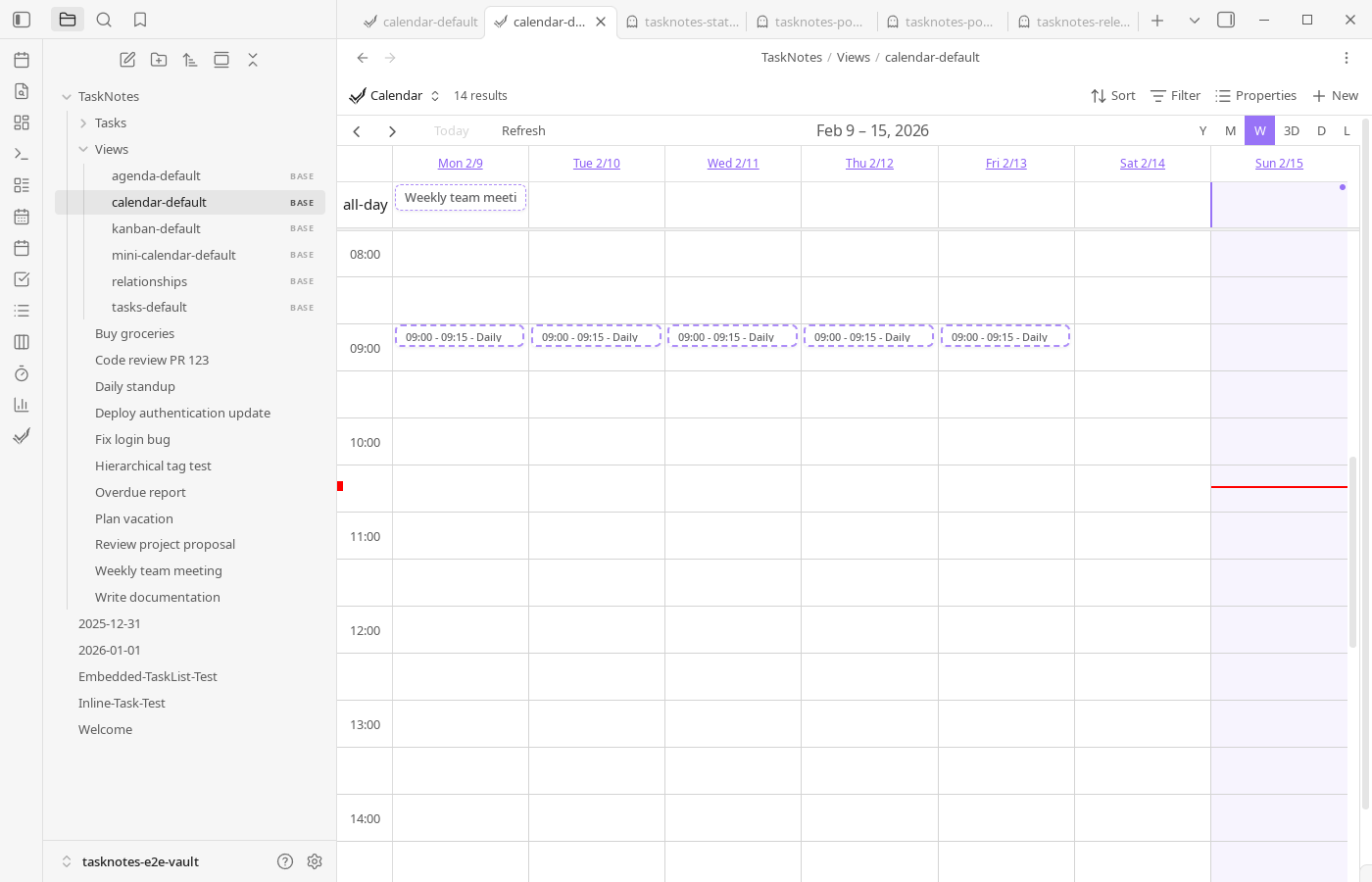
Recurring tasks can show:
- Next occurrence (solid border): dragging updates only
scheduled - Pattern instances (dashed border): dragging updates
DTSTARTand future pattern instances - Materialized occurrence notes: dragging updates the occurrence note's own
scheduledorduedate like a normal task, without changing the parent's recurrence rule
Materialized occurrence notes keep occurrence_date as their identity. If you drag the note for the June 1 occurrence to June 2, it is still the June 1 recurrence instance, now scheduled for June 2. TaskNotes suppresses the June 1 virtual parent event and leaves the June 2 virtual occurrence alone unless that date also has its own materialized note.
Completion Tracking#
Each occurrence can be completed or skipped independently (task cards, calendar menus, task edit modal completion calendar).
Completed instances are stored in:
complete_instances: ["2025-08-04", "2025-08-06", "2025-08-08"]
Skipped instances are stored in:
skipped_instances: ["2025-08-05"]
When completion changes, scheduled updates to the next uncompleted instance. If a materialized occurrence note exists for a date, that note's own status takes precedence for that occurrence, and TaskNotes reconciles the parent compatibility lists during completion, uncompletion, skip, and unskip actions.
This means completion history and next-action planning stay synchronized automatically, without manually advancing recurring tasks.
Flexible Scheduling#
TaskNotes intentionally allows off-pattern scheduling so recurring tasks can absorb real-world disruptions without rewriting the entire recurrence rule.
The next occurrence can be:
- Before
DTSTART - Outside the pattern day
- At a different time than pattern instances
- Far ahead while pattern continues unchanged
Examples#
# Early start before DTSTART
recurrence: "DTSTART:20250810T090000Z;FREQ=WEEKLY;BYDAY=MO"
scheduled: "2025-08-07T14:00"
# Off-pattern next occurrence
recurrence: "DTSTART:20250804T090000Z;FREQ=WEEKLY;BYDAY=MO"
scheduled: "2025-08-06T15:30"
Timezone Handling#
Recurring task logic uses a UTC anchor approach:
- Pattern generation uses UTC dates
DTSTARTdates are interpreted as UTC anchors- Display adapts to local timezone
- Prevents common off-by-one date issues
In other words, calculations stay stable internally while display remains local, which avoids drift when traveling or sharing vaults across timezones.
Backward Compatibility#
Recurring behavior remains compatible with older task data, so upgrades do not require manual note rewrites.
- Legacy RRule strings without
DTSTARTcontinue to work usingscheduledas anchor - Legacy recurrence objects are converted to RRule format
- Existing tasks continue to function without migration steps
- Mixed formats are handled transparently