Shared concept
A to-do app that stores each task as a Markdown file
TaskNotes keeps each task in its own .md file. Start in your browser without an account, then sync a folder to read and edit those files on your computer.
You need a browser to try this. To keep the files in a folder you can open in a text editor, you also need an mdbase account and the mdbase Connect desktop app. You can do the whole setup without Obsidian.
1. Start in the browser#
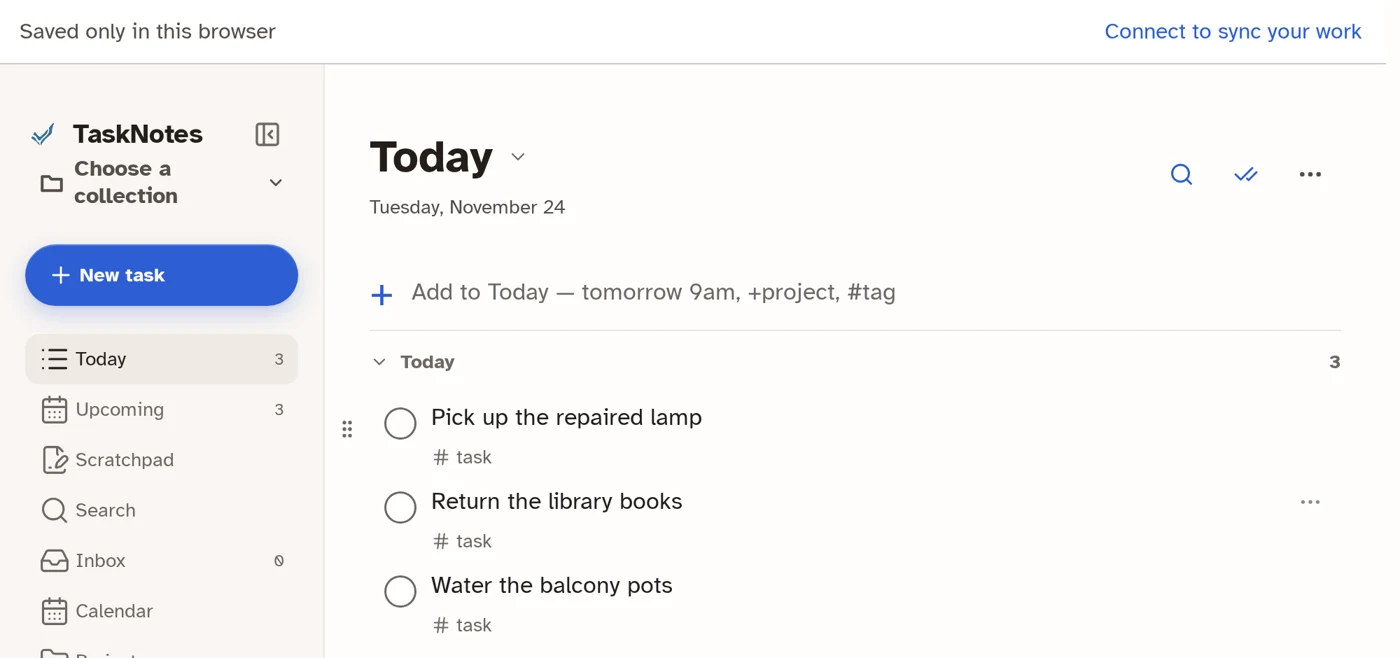
Open TaskNotes. You can create a task straight away. If the workspace says No views yet, choose Add starter views to get Today, Inbox and the other lists.
2. Write a task and find its file#
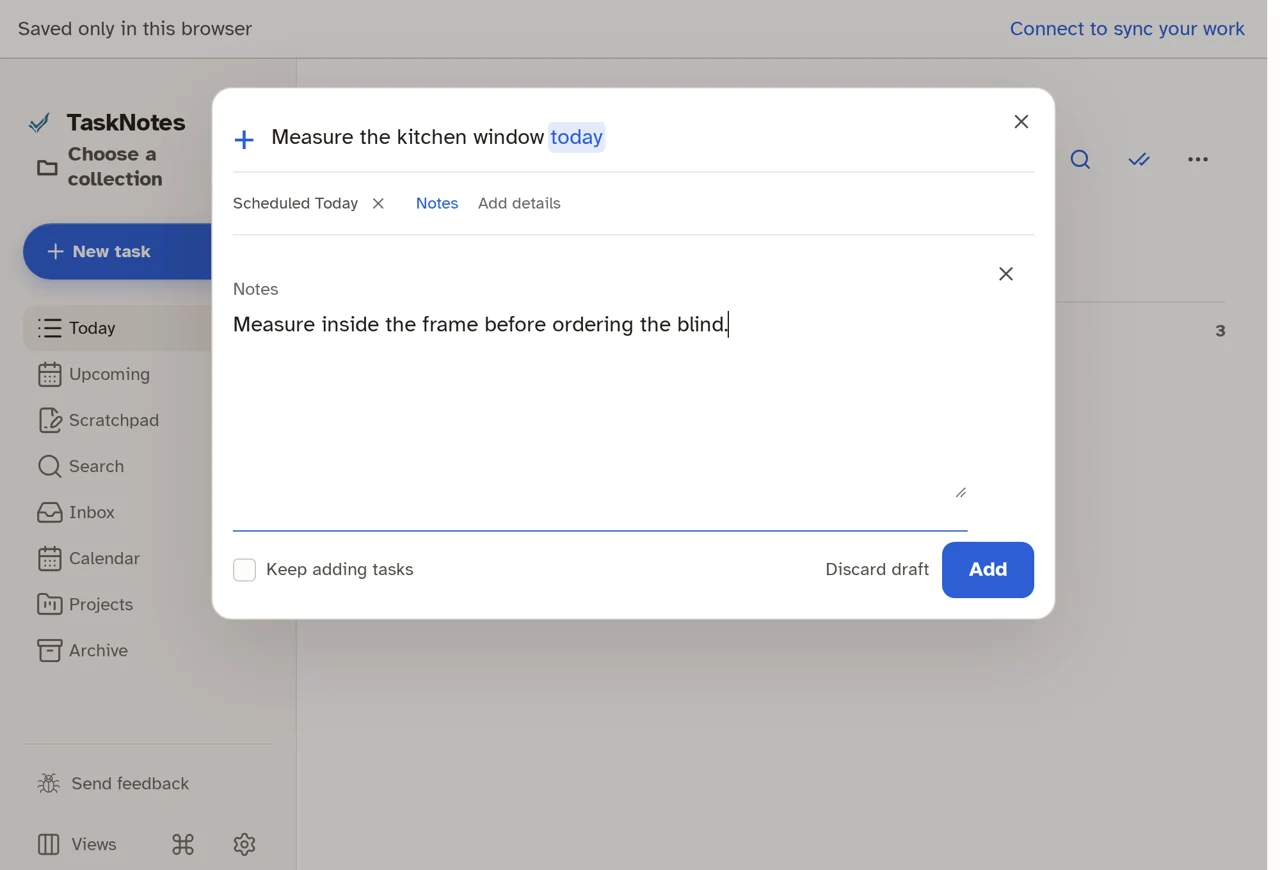
Choose New task. Try typing Measure the kitchen window today. TaskNotes puts “Measure the kitchen window” in the title and turns “today” into a scheduled date. Choose Notes, write a measurement instruction, then choose Add.
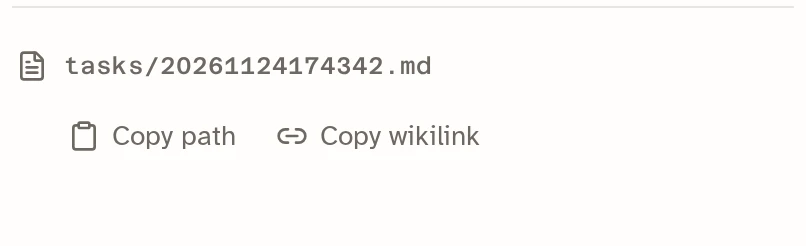
Open the task from Today. Its file path appears at the bottom of the task details. Copy path copies the location relative to the collection folder.
3. Keep the files on your computer#
So far the tasks belong to this browser profile. Clearing the site’s storage can erase them. To keep working with them as ordinary files, create a folder for the collection and bring your tasks into it.
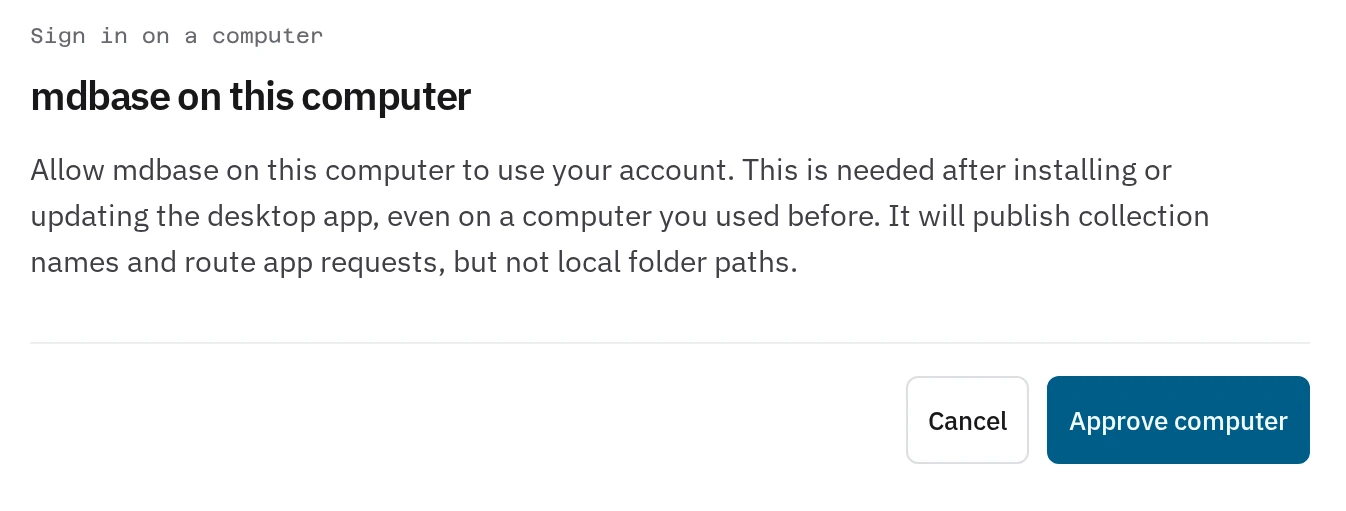
- Install mdbase Connect on your computer. Choose Sign in with your browser, sign in or create an account, and choose Approve computer.
- In the desktop app, open Collections and choose Create. Give it a name such as
Household, choose where to create its folder, and confirm. In Collections, open its … menu, choose Turn on sync, and confirm the default cloud copy.
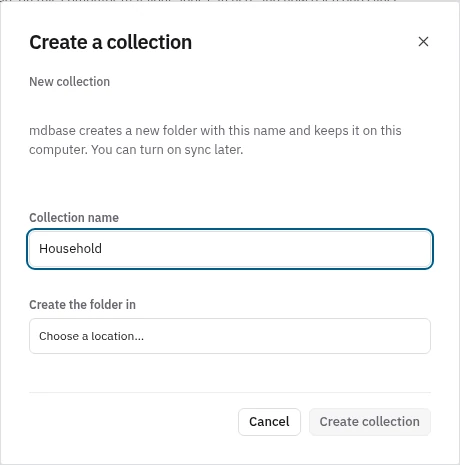
- Back in the same browser profile, choose Connect to sync your work. Sign in with the same account, select Household under Open in TaskNotes, then choose Open TaskNotes. If asked, confirm setup of the task type and starter views.
- When TaskNotes offers to bring your work into Household, choose Bring it in. Review any file renames it proposes. With mdbase Connect running, open the Household folder on your computer and look for the path shown in the task details.
Read the Markdown#
Here is the file TaskNotes wrote for the window measurement. The block between the --- lines is YAML frontmatter. The instruction beneath it is the Markdown body.
---
title: Measure the kitchen window
status: open
priority: normal
scheduled: "2026-11-24"
dateCreated: "2026-11-24T06:43:43.014Z"
dateModified: "2026-11-24T06:43:43.014Z"
tags: [task]
id: e1173327-29b8-4404-b235-156a657d92d0
mobileRevision: 1
type: task
---
Measure inside the frame before ordering the blind.
Open the file in a text editor, add the width and height below the instruction, and save. Once the folder syncs, open the task in the browser to see the measurements under Notes. With the default cloud copy, your computer can be off while you use the web app. It needs to be running again for changes to reach the folder.
For the relationship between a task file, its fields and its collection, see Portable task records.