Shared concept
Use your Obsidian tasks on iPhone and Android
Sync the folder that holds your TaskNotes Markdown files, then open the same collection in TaskNotes on your phone or on the web.
This works for tasks that have their own note in Obsidian. If your tasks are checkboxes in a daily note, convert a checkbox to a task note first.
Before you start#
Back up your vault and update the TaskNotes plugin to version 5 or later on every device that opens it. An older plugin can overwrite the task definition. You need an mdbase account and a computer with the vault folder for the desktop setup below.
Sync reaches the whole collection. If you only want your task notes online, use a separate vault for them. Use one sync service for a given folder. If you already sync this vault, decide which service will own that job before you turn on mdbase sync.
1. Prepare the vault in Obsidian#
Open Settings → TaskNotes → TaskNotes App. Under Use it with this vault, turn on Turn on type definitions if it is off. This writes the files that tell the app how to recognize your tasks, including the field names and statuses you use.

2. Sync the folder from your computer#
Choose Desktop app on that settings page, or download mdbase Connect. On this computer, use the desktop app or the mdbase sync plugin for Obsidian. Either can sync the vault.

- Open mdbase Connect. Choose Sign in with your browser and then Approve computer.
- In Collections, choose Add existing. Select the folder that contains
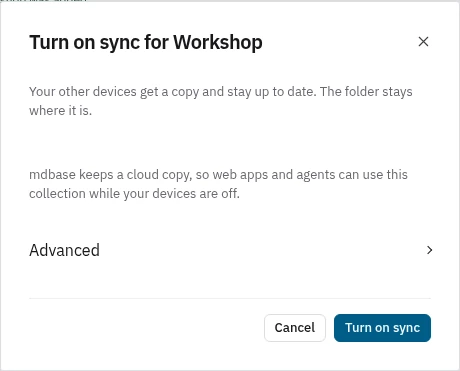
.obsidian. You can use Copy folder path in the TaskNotes App settings in Obsidian to find it. - In Collections, open the folder’s … menu and choose Turn on sync. Leave the default cloud copy selected and confirm Turn on sync. That copy lets you use TaskNotes while the computer is off.
3. Open the collection on your phone#
Install TaskNotes for iPhone or Android, or open TaskNotes on the web. Sign in to mdbase with the account you used on the computer. Under Open in TaskNotes, choose the collection with your vault’s name, then Open TaskNotes.
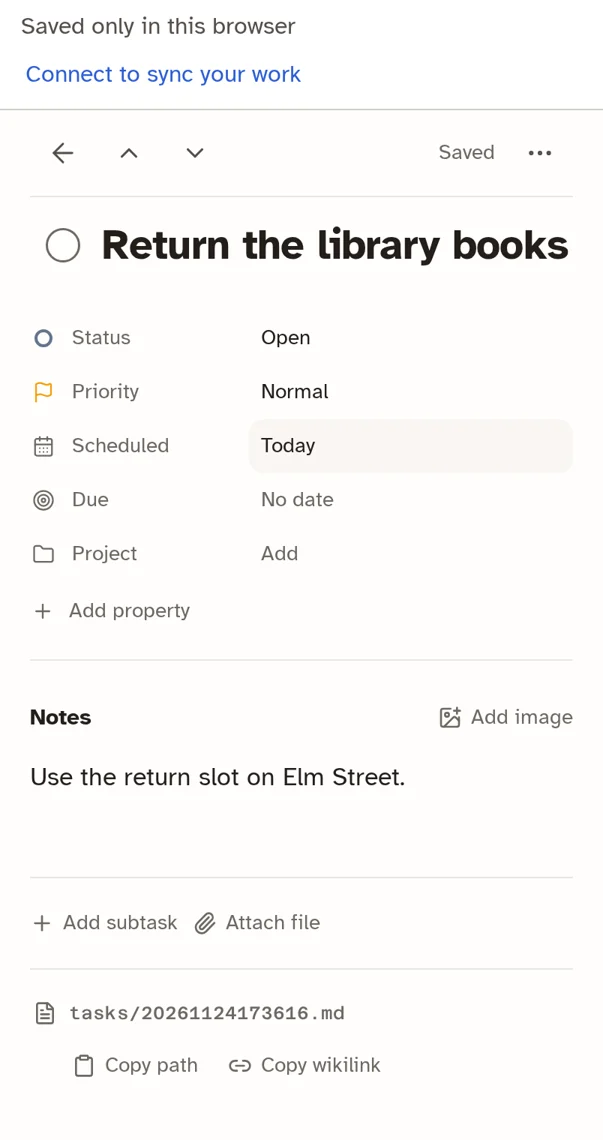
If TaskNotes prompts you to set up the collection, review the task type and saved views it proposes, then confirm. Open a task you recognize. A task scheduled for today appears in Today.
Find the same note on disk#
Add a line to the task’s notes on your phone. Once mdbase Connect is running and online on your computer, open the task in Obsidian and look for that line. In this example vault, the plugin saved the library task at TaskNotes/Tasks/Return the library books.md.
---
status: open
priority: normal
scheduled: 2026-11-24
dateCreated: 2026-11-24T17:37:27.736+11:00
dateModified: 2026-11-24T17:37:27.736+11:00
tags:
  - task
id: 94cf7626-32cd-490d-8bc4-4a67b6532863
---

Use the return slot on Elm Street.
In this collection the filename supplies the title. The properties between the two --- lines hold its status and schedule. The text below them is the note you edit on your phone. If an edit doesn’t reach your computer, check the collection connection.